

Running a Job on Plauti Server
Last updated
The process
Deduplicate Jobs are started from Plauti Deduplicate in Salesforce or MS Dynamics. At the Processing Options, select 'Run on Plauti Desktop / Server' to run a job on Plauti Server.
Then, open Plauti Server and start the job.
When starting a Deduplicate Job in Plauti Server, encrypted records in Salesforce or MS Dynamics are temporarily stored on your local server until all duplicate results are found. When the job is finished, results are pushed back to Salesforce or MS Dynamcis, where you can review the results and merge or convert the duplicate records.
The encrypted records will automatically be removed from your local device, keeping it 100% safe and secure.
Depending on the speed of your internet connection and the amount of data you want to process with Plauti Server, job completion time may vary.
Running Deduplicate jobs on Plauti Server
Plauti Server is available for the Plauti Deduplicate Premium edition, and requires an additional license (license is already included in PDM). Please contact us if you would like to receive pricing for Plauti Server.
Prerequisites
- You have installed Plauti Server.
- Salesforce: the user that created the Connection to the Salesforce Org has access to all of Plauti Deduplicate's Apex classes, for example by use of the Plauti Deduplicate permission set. See Plauti Server permissions for Plauti Deduplicate.
Preparing the job in Plauti Deduplicate
- In Salesforce or MS Dynamics, go to Plauti Deduplicate > Deduplicate Job.
- Click New Job.
- Configure the job in the 'Select Records' and 'Job Options' windows.
- At 'Processing Options', select Run on Plauti Desktop / Server.
- Click Start.
The job is now added to the job overview in Plauti Deduplicate, but not yet started. Its status shows 'Holding' or 'Waiting'.
Manually starting the job in Plauti Server
Roles for starting a job
To start a job in Plauti Server, you need one of the following Plauti Server roles:
PD User or PD Owner
Learn more about assigning roles in Team Management.
To start the job you just prepared:
- Open Plauti Server.
- In the left menu, under Plauti Deduplicate, click Jobs.
- Find the job you just created. If you don't see it right away, click 'Refresh Jobs'.
- Click Start Job.
- In the pop-up, review the confirmation data and click Start.
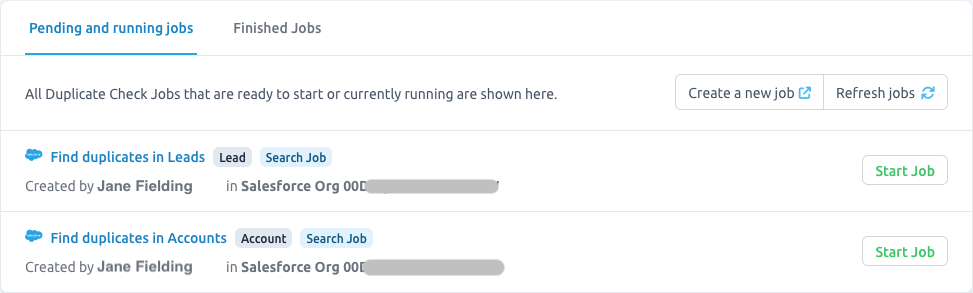
In the Pending And Running Jobs overview, the progress of the job is shown. Note that it might take a few minutes before the job is started.
Once the job is finished, it will show up on tab Finished Jobs. It will also be shown in Deduplicate Job in Salesforce or MS Dynamics, where you can process it further.
Server Jobs run as long as the service is active
Since Plauti Server runs as a service, you can close the Plauti Server web interface after starting a job; as long as the service keeps running the job will continue.
Automatically starting jobs
Instead of needing to open Plauti Server to start a job, you can also configure them to start jobs automatically. Enable 'Auto Run Jobs' in the Plauti Deduplicate Settings.
No jobs visible
If you don't see any jobs under Pending And Running Jobs, or not the jobs you expected:
- Click Refresh Jobs at top right to refresh the Pending And Running Jobs overview
- Make sure your org is connected at Connections (bottom left)
- For Salesforce: make sure the user you used to create a Connection to your org has access to all of Plauti Deduplicate's Apex classes, for example by use of the Plauti Deduplicate permission set. See Plauti Server permissions for Plauti Deduplicate.
- Check tab Finished Jobs to see if the jobs was perhaps already picked up by Auto Run.