

Address validations
Learn how to set up Address Validation. If you want to know how to use Address Validation, please read the Usage Guide.
Plauti Verify automatically configures and maps your standard address fields for the Lead, Contact, and Account Object. To configure address fields for other objects, to adjust your current configuration (adding more/fewer fields to your current field set) or to add a validation for a new set of fields, go to the Plauti Verify Setup page.
- In Plauti Verify, go to the Verify Setup tab > Object Configuration.
- At the Object you want to make address field changes for, click Configure
 .
. - Go to the Address tab.
- To make changes to an existing Address Validation field set, click Configure
 .
. - To add a new field set to validate, click Add Validation
 .
.
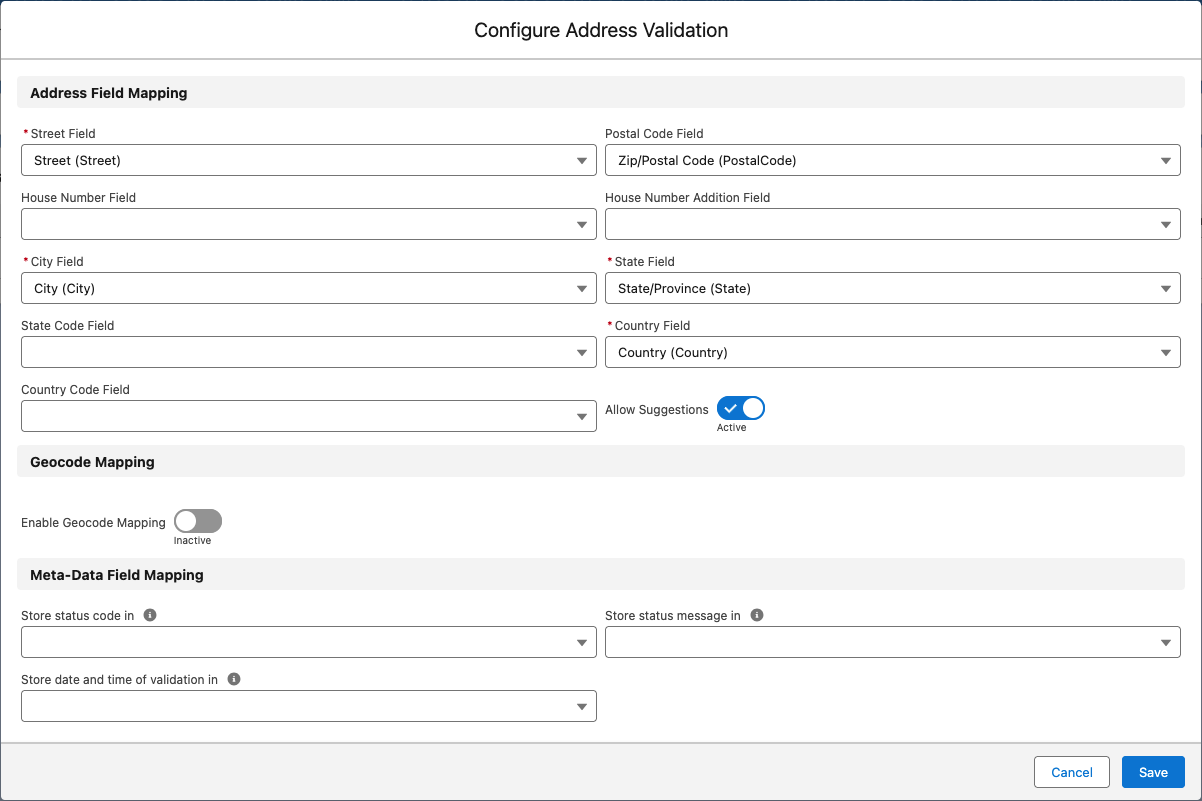
Configuring a Validation
Field and API names
To make sure you are mapping to the right fields, you can add the API names next to the field labels. Enable Verify Setup - Show API Names in the general settings of Verify Setup to show API names as well.
Address Field Mapping
For each address field listed, select the corresponding record field that should have its value validated. For example, for Street, should the Billing Street or the Shipping Street field be validated?
Street, City, State, and Country are mandatory fields for acquiring a valid validation; the other fields are optional.
When Salesforce's State/Country Picklist feature is not in use, Plauti Verify can provide State and Country Codes based on the address at verification. Map the State and Country Code fields to the fields where you'd like to store these, or leave empty if you have no need for this.
When you have finished configuring the validation, click Save.
Geocode Mapping
A Geocode is the latitude and longitude of a certain address.
With Geocodes enabled, Plauti Verify adds geocodes to addresses that do not yet have their latitude and longitude recorded, and updates existing geocodes if they are incorrect. The mapped Latitude and Longitude fields are then shown in the Address component.
Geocode fields format
Plauti Verify needs latitude and longitude fields in the decimal format, configured at at least seven decimal places, to be able to fill and validate geolocation values.
- Toggle the Enable Geocode Mapping button to enable geocodes.
- Click Enable to confirm that an additional 4 credits per address validation will be charged.
- Select the Latitude and Longitude fields you want to use. These fields are mandatory for acquiring a valid geocode. If an address does not have a geocode yet, its latitude and longitude will be stored in these fields.
- Select text fields to store the geocode status code in, and optionally the geocode status message. If you do not have suitable text fields available, create new custom fields with data type 'Text' to use here.
Note that the validation will overwrite any earlier content of the text field. This also means that you need to use two different fields for the status code and the status message.
The geocode status code and message give you more information about the validation status of the geocode. Furthermore, the geocode status code is needed when validating geolocations via Verify Live and Verify Job.
See Status codes description for a full list of all geocode status codes and messages.
5. Click Save when you have finished configuring the validation.
Geocode Mapping is disabled by default. With Geocodes enabled, an additional 4 credits per address validation are charged.
Meta-data Field Mapping
Address Validation has some metadata that you can store and use later on. The metadata consists of a status code and status message that give more information about the validation of an address (e.g. "verified up to Street level","incomplete", etc.), as well as the date and time of the most recent validation.
See Status codes description for a full list of all status codes and messages.
You can use this metadata for example in Plauti Deduplicate Merge, to merge all groups that were validated before a certain date; or to show the address validation status message directly on any object.
For each metadata field, select a custom text field to store the validation data in. If you do not have suitable text fields available, create new custom fields with data type 'Text' or 'Date/Time' to use here. For (Person) Accounts, Contacts and Leads, custom fields for status codes were created upon install (e.g. "Verify Shipping Address Status Code").
Note that the validation will overwrite any earlier content of the text or date/time field. This also means that you need to use different fields for storing the status code and status message.
Do not use the "Verify Record Status" (recordval__rv2Status__c) or "Verify Validation Result" (recordval__rv2Validation__c) fields to store status codes or other metadata. These fields are used to make Plauti Verify work for (custom) objects. If status codes or other metadata are stored in these fields, Plauti Verify will not work anymore for that object.
Adding a Validation
To use multiple sets of address fields for Plauti Verify, add a Validation by clicking Add Validation  . For example, add validation field sets for the billing address and the shipping address.
How does Plauti Verify validate your address?
Plauti Verify will parse, standardize, verify, cleanse and format address data for over 240 countries and territories.
Parsing engine
The parsing engine standardizes and cleanses addresses from unstructured and semi-structured data, automatically placing elements into the correct fields and eliminating erroneous non-address data.
Verify
Verify will indicate the validity of each address value included in the input address, reducing costly errors. This solution can validate both partial and complete address inputs.
Auto-Complete
Auto-Complete will predict, in real-time, the verified complete address a user is entering with each keystroke. This feature reduces address entry time by up to 80% and cuts back data entry errors at the point of capture by more than 20%.
Transliteration
Plauti Verify transliterates words or letters from different global character sets into Roman characters across eight scripts, including Cyrillic, Hellenic, Hebrew, Kanji, Simplified Chinese, Arabic, Thai, Hangul.
House Names instead of House Numbers
In some countries, such as the United Kingdom, addresses can have a house name instead of a house number. Plauti Verify can validate such addresses, but only if the house name or property name is officially registered as such. House names that are only listed as a company name cannot be validated.
Note that this differs from finding an address on Google Maps, where you can search by company name as well.
For example, Plauti Verify can validate
- Snowdrop Cottage, Tathwell, Louth, Lincolnshire, LN11 9SR, United Kingdom (registered house name)
but not - Snowdrop Cottage, Bramham Rd, Clifford, Wetherby LS23 6JF, United Kingdom (company name)