

The Monitor Setup page
After installing Plauti Monitor, configure the different Plauti Monitor settings on the Monitor Setup tab. We recommend doing this before granting your users app access.
Prerequisites
- If you are not a System Administrator, you need to have the Plauti Monitor Admin permission set.
Accessing Monitor Setup
To open Monitor Setup:
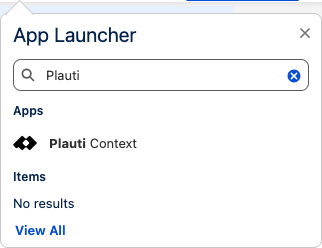
- In your Salesforce Org, go to the App Launcher and open the Plauti Monitor app.
- In the Plauti Monitor app, go to tab Monitor Setup.
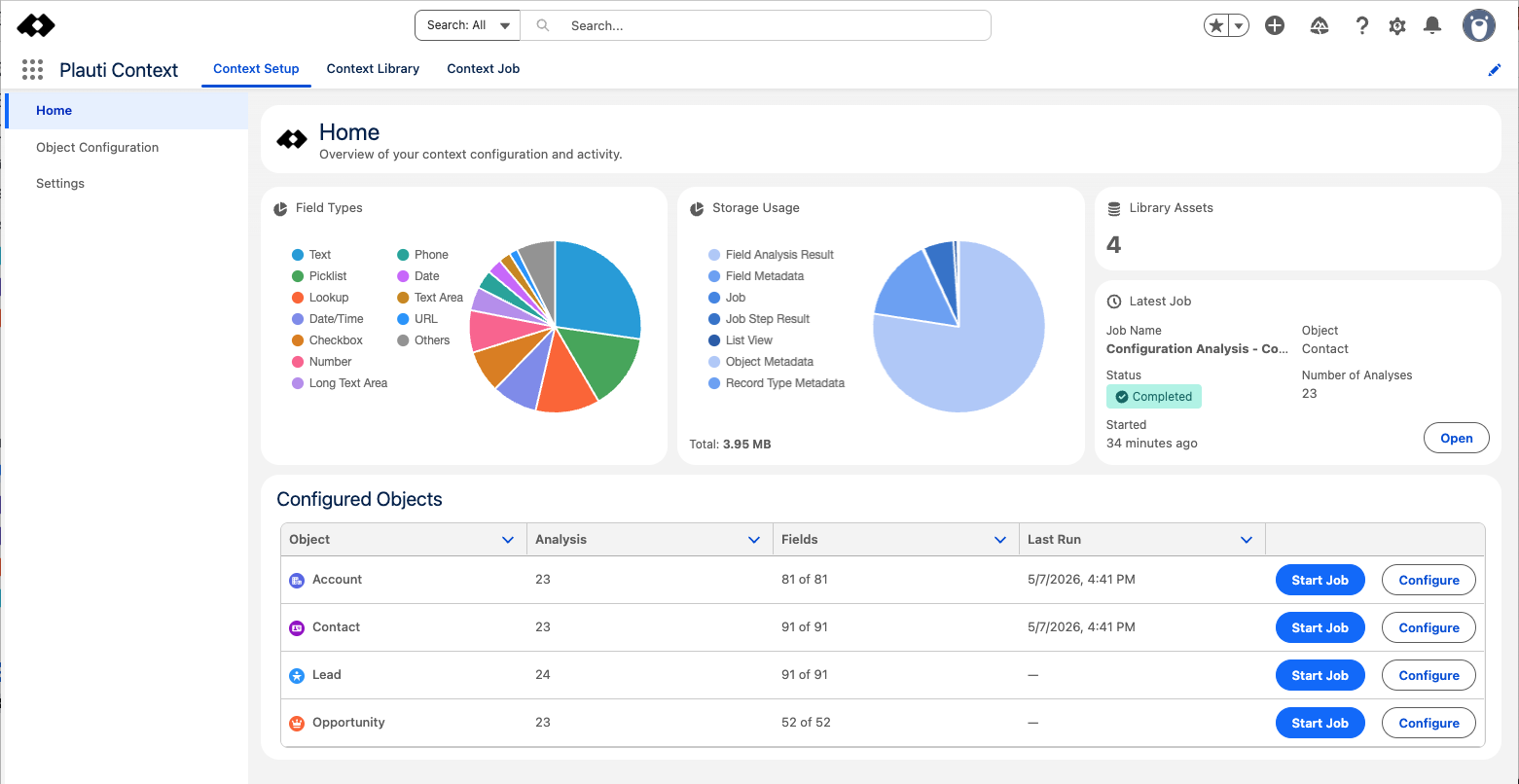
The page opens at the Monitor Setup Home. Here you see at left:
- The menu bar for the different settings options: Object Configuration, License, and Settings.
At right, the Monitor Setup Home displays the current settings and activity. When you make any changes to the Object Configuration, they are summarized here where you can see them all at a glance.
In a pie chart section, click on a value at left to temporarily remove it from the pie chart view.
- Field Types shows the distribution of the different field types over the configured fields. These field types correspond with Salesforce's field types.
- Storage Usage shows the storage use of the different Monitor elements you are currently using.
For Field Analysis Results: the storage usage differs per Analysis Type. For example, the Value Distribution analysis types store all the different values found. So in those cases storage usage will improve once you have taken action as a result of the analysis, by cleaning up your data. - Library Assets shows the number of Objects you have currently configured. These are displayed in the Configured Objects list below.
- Latest Job displays details about the last Monitor Job (configured or ad-hoc) that ran or is running. At Status you can see whether it completed, failed, or is still running.
- Click Open
 to view the job result details.
- Click Open
- Configured Objects shows the number of Analysis Types and Fields that you have enabled for analysis, how many records there are for each Object to analyze, and when the last job ran.
- Click Start Job
 to start a Configured Monitor Job to analyze the Object and save the results in the Monitor Library.
 - Click Configure
 at an Object line to edit the Object Configuration.
- Click Start Job
Configure Plauti Monitor in Object Configuration and Settings at left.