

Update to the new Verify Live
Last updated
In Plauti Verify release Spring '24 (3.107), Verify Live was redesigned to be more user-friendly, for a better user experience.
To use the new Verify Live, simply switch out the old Record Validation page component with the new Verify Live component in the Salesforce Lightning App Builder.
 If Verify Live was not yet in use for a certain object, please see Add and configure Verify Live to your page layout on how to add Verify Live to that object. Next to adding the Verify Live component to the page, there are some other steps to take in order to put Verify Live into use.
Out with the old, in with the new
To switch out the old Record Validation component for the new Verify Live component:
- Go to the Object where you want to add Verify Live.
- Open a record of the Object.
- At top right, click the Salesforce Setup icon and select Edit Page.
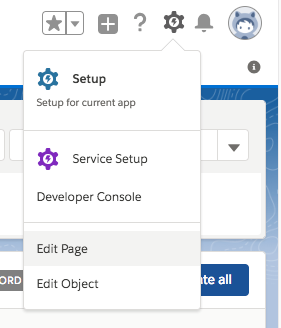
The Salesforce Lightning App Builder opens.
At the page layout, remove the old 'Record Validation (deprecated)' component from the page layout by hovering over it and clicking the Delete icon.
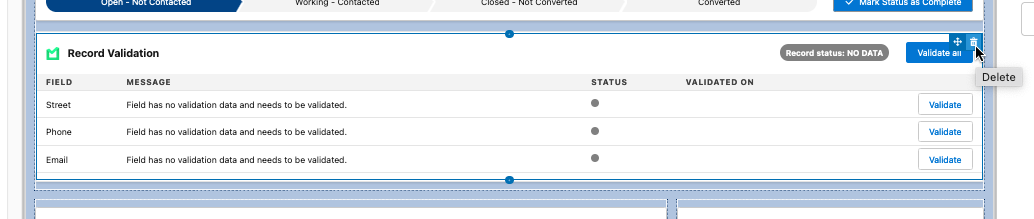
You can check that it is the old component by clicking on it, it will show "Record Validation (deprecated)" at top right.
At left, under 'Custom', find the new Plauti Verify Live custom component.
Place it on the page by dragging it onto the page layout.
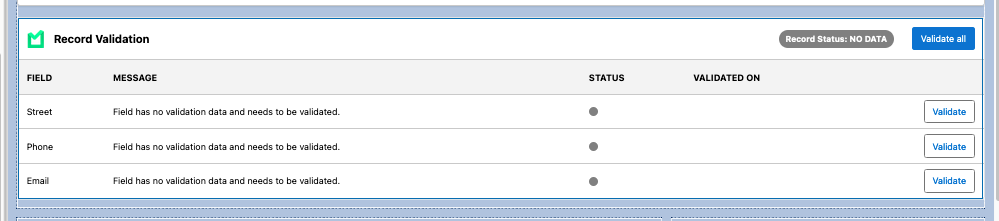 Read more on how to place the component on the page here.
You can check that it is the new component by clicking on it, it will display "Plauti Verify Live" at top right.Click Save to activate.
Repeat for each object where you are using Verify Live.
New Verify Live for Lightning
The new Verify Live is only available for Salesforce Lightning, not for Salesforce Classic.