

Verify Live
Last updated
Plauti Verify Live performs a real-time search and presents all set-up fields and their validation status when opening a record. Instantly validate these fields for the record you are currently working on.
Verify Live can be integrated into any record page layout in your Salesforce Org.
Install or update Verify Live
Read more about installing Verify Live in Add and configure Verify Live.
In Verify release Spring '24 (3.107), Verify Live was redesigned to be more user-friendly, for a better user experience. To use the new Verify Live, simply switch out the old Record Validation page component with the new Verify Live component. Read more in Update to the new Verify Live.
 The validation status of set fields as shown when opening a record
Verify Live Validation Information
| Field | The field to validate. All validation fields that are configured in the Address validations, Phone number validations, or Email validations settings, will be shown here once they contain a value. Note that the Address field only appears once a country was entered. |
| Message | Current field validation status as detected by the Verify Live service. |
| Field Status |  This field has not been validated yet, or has been changed manually, and needs validation. This field has not been validated yet, or has been changed manually, and needs validation. The current address is validated up to city level. Editing it, e.g. by selecting a suggestion from Plauti Verify, can change it to green status. The current address is validated up to city level. Editing it, e.g. by selecting a suggestion from Plauti Verify, can change it to green status. This field is fully validated. This field is fully validated. This field cannot be validated due to unusable or invalid data. This field cannot be validated due to unusable or invalid data. |
| Validated on | Date and time of the last validation |
| Record Status | Indicates the status of the entire record. It will take the lowest validation status found for the validation fields. |
Action Buttons
 |
Use Validate all to validate all validation fields in one go. |
Clicking Validate all shows you all validation fields with their current and suggested values, and options to edit the suggestions.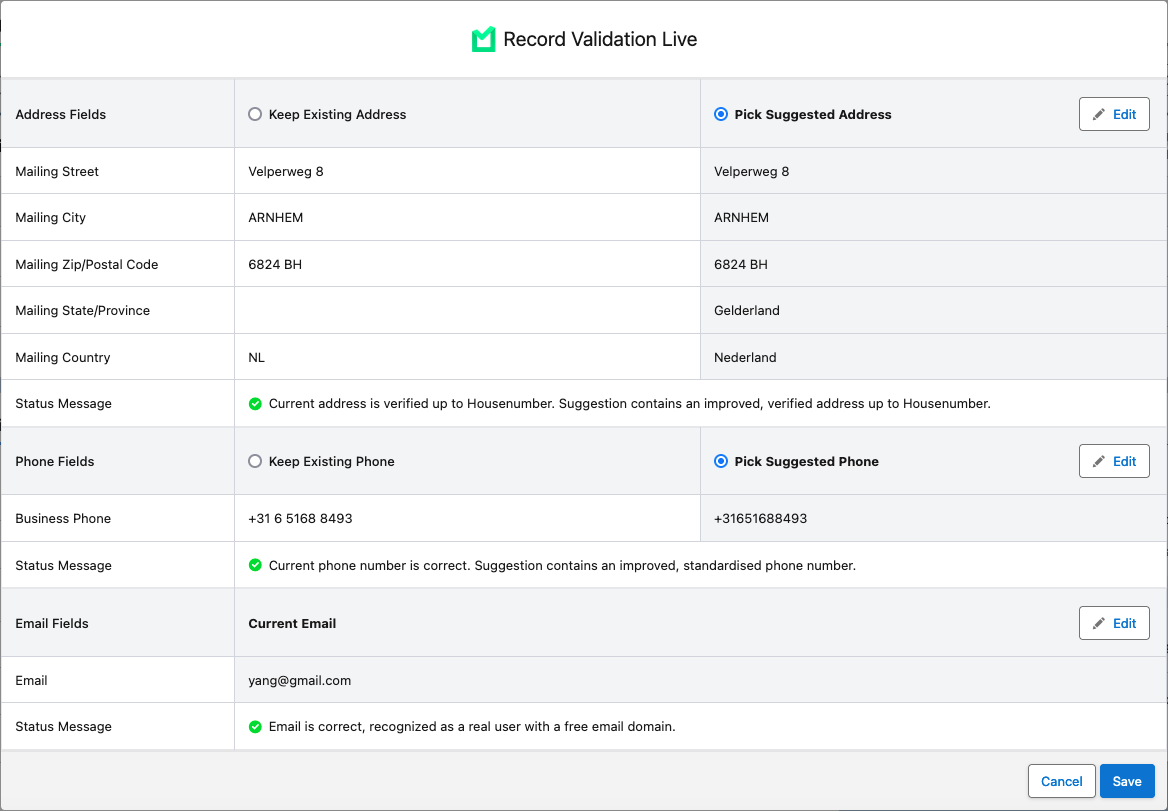 |
|
 |
Use Validate to validate a single field. |
Clicking Validate shows you the details of the selected validation field, with its current and suggested values, and option to edit the suggestions.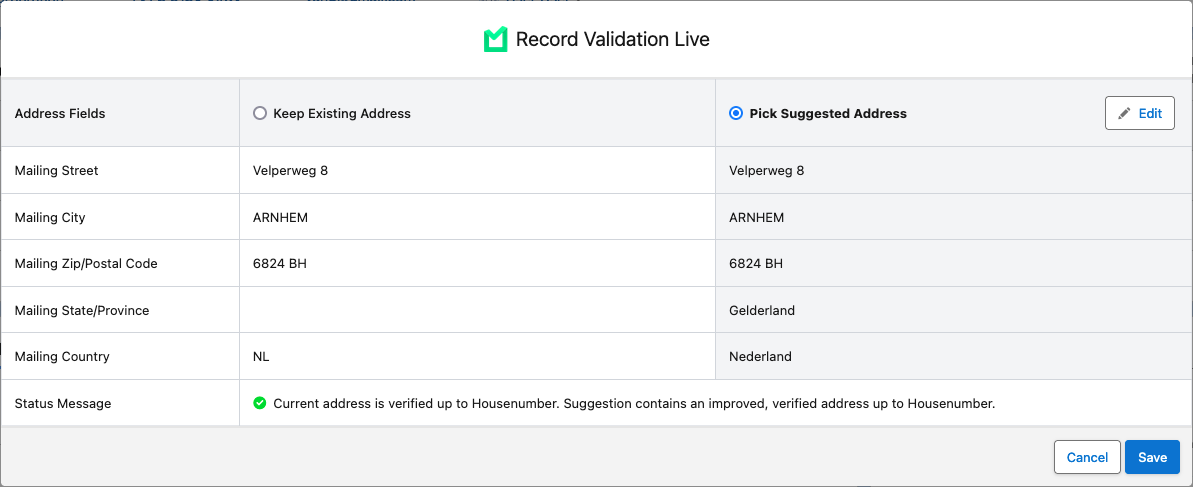 |
Validating record data with Verify Live
To validate incomplete or incorrect record data:
- In the Verify Live block,
- Click Validate All to validate all fields in one go
- Click Validate to validate one of the fieldsThe validation window opens.
- Select whether to keep the existing values, or pick the suggested values.
If you think neither are correct, click Edit to enter a custom value. - If you clicked Edit to make changes, click Validate to validate your changes, or Restore to revert to the previous value.
- Click Save.
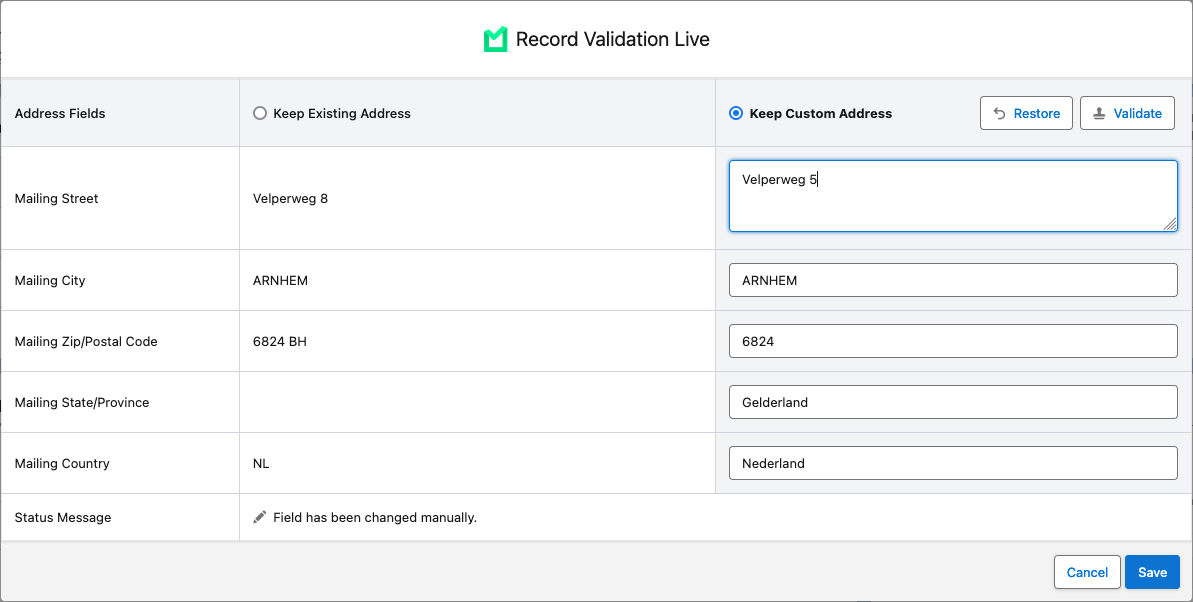
After saving, the validated fields will show as green in the Verify Live block.