

Entity Settings
Last updated
In an entity's Settings you can configure Plauti Deduplicate settings that can differ per entity, such as the Result Fields.
To configure the Entity Settings for a certain entity:
- In the Plauti Deduplicate app, at left, go to Manage Entities.
- At the entity you want to configure settings for, click Manage at right.
- Go to the <Entity> Settings tab.
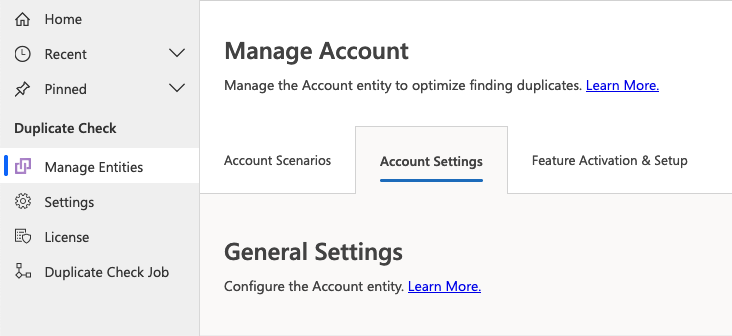
General Settings
Result Fields - Duplicate Check Job Results
After a Deduplicate job is finished, its results are shown on the Deduplicate Job Results page. The Result Fields are the entity fields that are shown in the job results.
To change which entity fields are shown in Deduplicate Job results:
- At "Result Fields - Deduplicate Job Results", click Edit.
- Move the entity fields you want to display to the Selected Fields column.
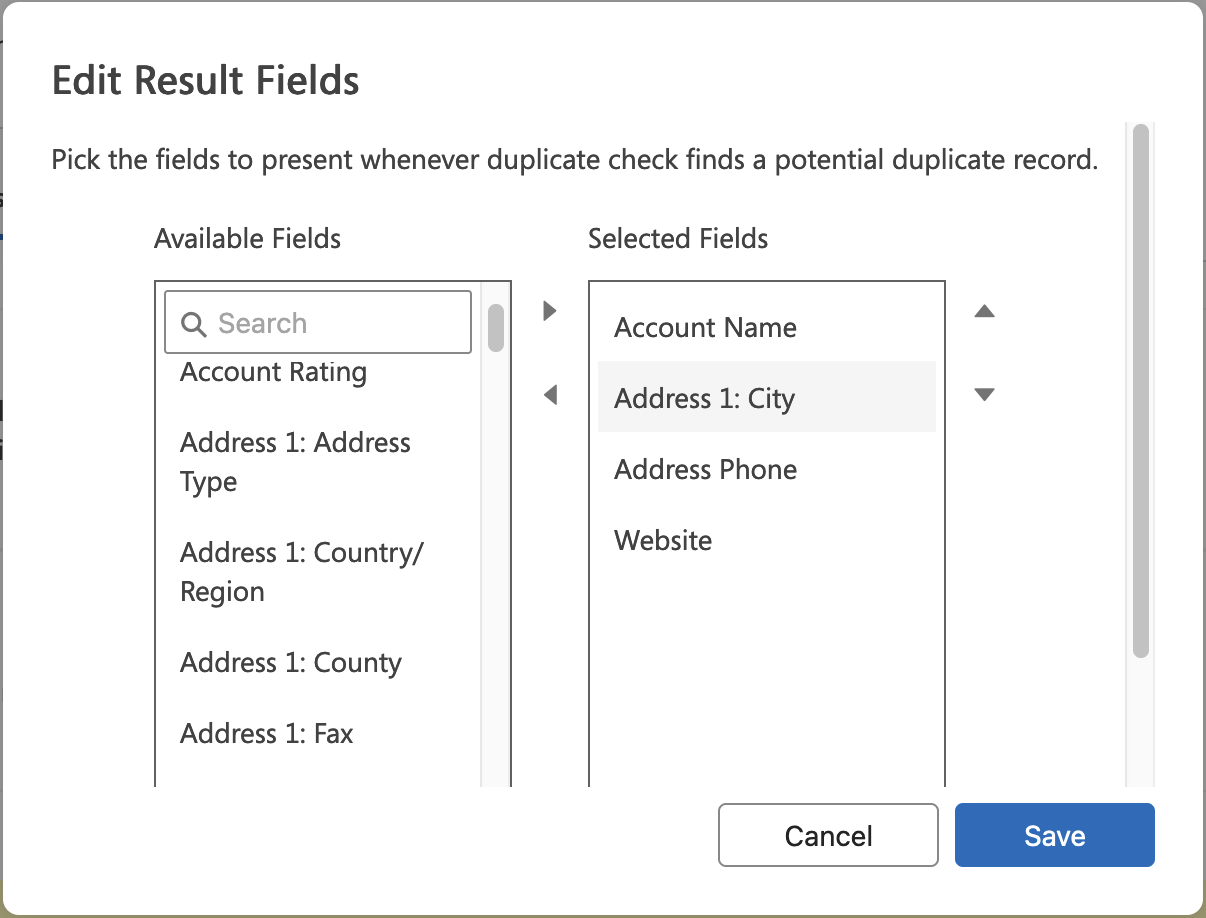
- Click Save.
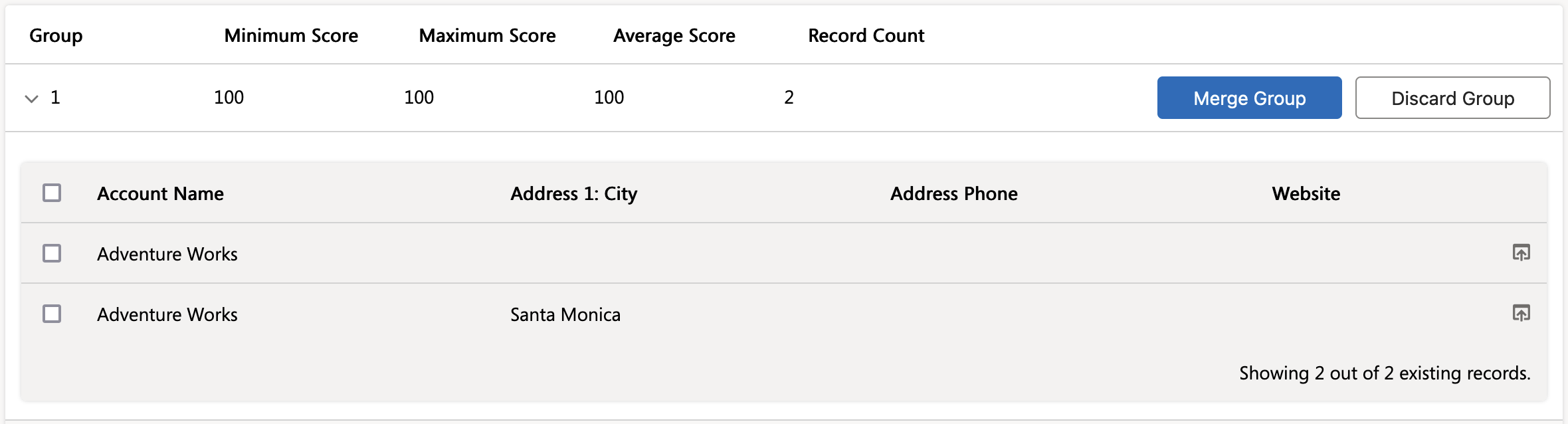 This job result shows result fields Account Name, Address 1: City, Address Phone, and Website
➡ The result fields that are shown on tab "Duplicates Found" for single record duplicates, can be set in the Duplicate Prevention settings.
In the Lead Settings you'll find two additional settings:
- Account Cross Entity Result Fields - Deduplicate Job Results
- Contact Cross Entity Result Fields - Deduplicate Job Results
These are intended for the Account and Contact results of a Cross-Entity Deduplicate job, and are configured in the same way as the regular Result Fields setting for Deduplicate Job Results.
Delete Entity Configuration
This option will delete the entity and all of its configuration, so including scenarios and feature configuration, from the Plauti Deduplicate Setup. This cannot be undone! Of course you can always add the entity again at a later point, but it will need to be fully reconfigured again, including all scenarios and feature settings.
To delete an entity's full configuration from the Plauti Deduplicate Setup, click Delete at "Delete Entity Configuration".
Inactive Records
Plauti Deduplicate only marks active records as duplicates when searching for duplicates. Define which records of this entity are regarded as 'disabled' in your environment. These records will not be marked as duplicate.
For each listed status, set the status reasons that indicate a disabled (inactive) record.
If all status reasons indicate an active record, leave the Status Reason field empty. This will usually be the case for statuses such as the "Active" status: if all status reasons for the "Active" status indicate an active record, leave the field empty.
 Most common configuration for Contacts: no status reason entered for 'Active' because all its status reasons indicate active records.
 Most common configuration for Leads: no status reason entered for 'Open' because all its status reasons indicate active records.
Qualified, canceled etc records indicate inactive records.
Advanced Settings
Generate Relationship Descriptors for entity
Usually relationship descriptors are generated automatically. In the cases where that did not happen, you can generate them here by clicking Generate.
If you get a warning message on the Required Actions page stating that an entity has no published relationship descriptor, generate them here.
Start Entity Setup Process for Entity
When the Plauti Deduplicate setup for an entity is published for the first time, customizations are applied to forms and ribbons. Because of this, the first publish of an entity setup is of the type "Publish All".
When you make any changes to your forms or ribbons, or add a form to use in an app, the Plauti Deduplicate setup needs to be re-published for all entities where you want to use Plauti Deduplicate. This way the necessary customizations are added to the new or edited form or ribbon. Just clicking "Publish" after making changes within the Plauti Deduplicate Setup is not sufficient, as it will only add the Plauti Deduplicate setup changes you made to forms.
Click Start Entity Setup to start a publish of the entity's setup of the type "Publish All". This will add Plauti Deduplicate customizations to all forms of the entity.
After clicking, a message will appear at the top of the page, stating "The entity setup for <entity> is in progress...". Once this message disappears again, the entity setup has been completed.
You can also use Start Entity Setup to re-start the Entity Setup process after clicking Start Entity Teardown earlier. When starting an Entity Teardown (see below) a message will appear at the top of the page, stating "The entity teardown for <entity> is in progress...". Once this message disappears again, you can click Start Entity Setup to restart the entity setup.
Start Entity Teardown Process for Entity
Where the above setting "Delete Entity Configuration" removes an entity and its configuration from the Plauti Deduplicate setup, Entity Teardown removes all Plauti Deduplicate features from an entity.
Click Start Entity Teardown to fully remove Plauti Deduplicate from an entity. A message will appear at the top of the page, stating "The entity teardown for <entity> is in progress...". Once this message disappears again, the teardown has been completed.
In the process of deleting the Plauti Deduplicate app from your environment, first apply Entity Teardown to each entity configured in Plauti Deduplicate. Then delete the solution. Read more about deleting the Plauti Deduplicate app in Uninstall Plauti Deduplicate for Dynamics 365.
Abort Ongoing Setup/Teardown Process for Entity
The first time Plauti Deduplicate Setup is published for an entity, this should take about 5 minutes. An Entity Teardown process should also take up comparable time. If it takes significantly longer, the process might be stuck somewhere. To fix this, you can try to stop the setup publish or teardown for the entity, then try again.
Click Abort Entity Setup/Teardown to try and stop an ongoing system Entity Setup or Teardown process for an entity.