

Create a Search Index for Salesforce with Plauti Desktop
To speed up the process of creating Search Indexes in Salesforce or Dynamics, use Plauti Desktop to process the index job.
Prerequisites
- You have enabled the Search Index for your object. See these instructions on how to do that. At that same page, you'll also find information about storing the index at different locations, and additional configuration options.
- You have installed Plauti Desktop.
1 Start a Search Index creation job from within Salesforce
- In Plauti Deduplicate in Salesforce, go to Deduplicate Setup.
- Go to Object Configuration, and configure the Object you want to create the index for.
- Go to the Index Batch tab.
- From the Action menu, choose Create Search Index (Plauti Desktop/Server).
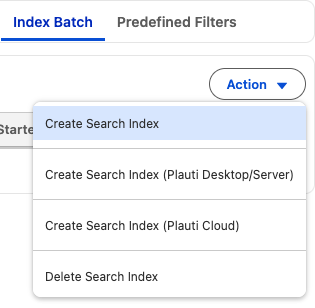
Your Search Index creation job is now queued in Plauti Desktop.
2 Start the job in Plauti Desktop
Open the Plauti Desktop app.
At left, go to Plauti Deduplicate > Jobs.
Find the Search Index job you just created on tab ‘Pending and running jobs’. It is labeled ‘Index Job’.
Click Start Job.
Check the job details and click Start.
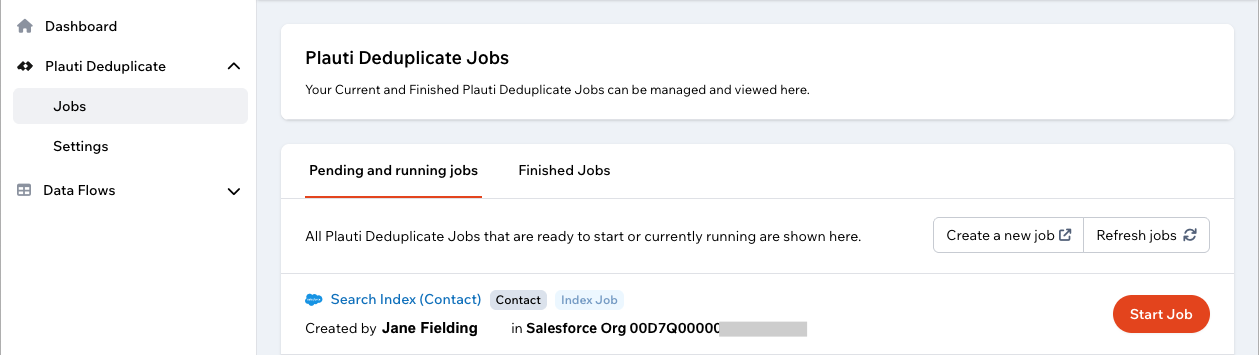
Plauti Desktop will now create the Search Index for your Object and send it back to Salesforce. You can monitor progress both in Plauti Desktop, and in Plauti Deduplicate in Salesforce, at the Index Batch tab where you started the job.
When the Search Index Job is finished, its Progress will state ‘Completed’ or ‘Finished’.
Troubleshooting
- If you don't see the Search Index Job in the Jobs list:
- Click Refresh Jobs and wait a few seconds.
- At bottom left, click Connections. Check that there is a Connection present for the Org where you started the Search Index Job, and that it is Active.
- If the Search Index Job keeps displaying ‘Holding’ in the Progress column, you need to start it in Plauti Desktop.