

Export Salesforce Deduplicate Job Results via Plauti Desktop
The Deduplicate Export feature lets you export Deduplicate Job results from Salesforce.
Deduplicate Job Export is available in the Premium and PDM editions.
Exports for Custom Objects
To export Deduplicate Job results for jobs run on custom objects, you need to configure some extra fields first. See Deduplicate Job Export for Custom Objects on how to do this.
The Deduplicate Job Export feature lets you export Deduplicate Job results to a .csv or .xlsx file. This way you can review or customize your reports and present them outside the Salesforce environment.
Prerequisites
- You have installed Plauti Desktop.
1. Exporting Deduplicate Job results
First, prepare an export job to export the job results.
- In your Salesforce ORG, go to the Deduplicate Job Overview page.
- Find the job that you want to export.
After a Deduplicate Job is completed, if the job contains records, the Export Results option will appear in its Job Options menu.
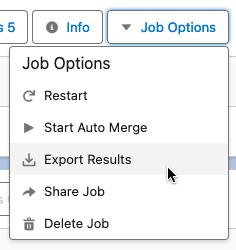
At the job's Job Options, click Export Results.
Plauti Deduplicate will show a summary of what will be exported, such as the number of records, which result fields, etc.
In the summary window, click Export via Plauti Desktop/Server to start the export via Plauti Desktop.
The export appears as a subjob to the exported job in the Job Overview. As long as the subjob's status is set to Holding, the job has not yet been exported. Proceed by running the Export Job.
Plauti Deduplicate exports the Result Fields, and the following standard fields:
- Group
- Pair ID
- Record A ID, Record B ID
- Record A name, Record B name
- Score
2. Running the Export Job
Next, run the actual Export Job.
In Plauti DEsktop, at left, go to Plauti Deduplicate > Jobs > Pending and Running Jobs.
Find your export job. Its title will start with 'Export Results: ...', and it will have the 'Export Job' label.
Click Start Job to start the Export Job. If you have 'Auto Run Jobs' enabled, the job will have started automatically.
A confirmation pop-up appears.
In the confirmation pop-up, select a file type for the export results file: .csv or .xlsx.
If you have 'Auto Run Jobs' enabled, the file type will be .csv.
Click Start to start the export job.
Once the job is finished, it will appear at the Finished Jobs tab. In Plauti Deduplicate, the subjob's status will change to 'Completed'.
3. Retrieving the Export Results
After the export job ran successfully, you can download the results file.
- Still in Plauti Desktop, at left, go to Plauti Deduplicate > Jobs > Finished Jobs.
- Find the export job. At right, click Download Results File.
You are taken to the download location of the export file where you can open it right away.
You can also access the downloaded export file via /Users/<your-username>/plauti-apps/plauti-deduplicate-files.
Export more or fewer fields
Plauti Deduplicate will export the standard export files, plus the fields as defined in the Result Fields settings. To export more or different fields, add the fields you want to export to the Result Fields settings:
In Plauti Deduplicate, go to Deduplicate Setup.
At left, click Object Configuration.
At the object you want to add or remove fields for, click Configure.
On tab 'Result Fields', click Configure again.
To add fields, move them from Available Fields to Result Fields.
To remove fields, move them from Result Fields to Available Fields.
Click Save.
Export other data
This article explains about exporting Deduplicate Job results specifically.
To export other data from Plauti Deduplicate or Salesforce in general, you can use the Export data flow in Plauti Desktop. Read more in Export Data in Bulk.