It would be very wasteful for fresh leads to be assigned to the rep that has just gone away for a week's vacation!
One time setup of Out of Office
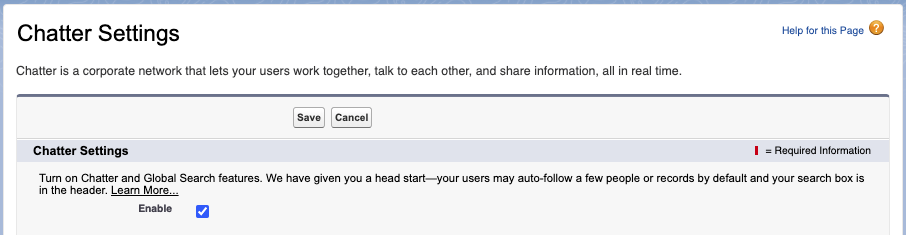
Plauti Assign leverages the Out of Office setting supplied with Salesforce in the Chatter module. This means that Chatter needs to be enabled if it isn't already:
- Go to Salesforce Setup > Chatter > Chatter Settings.
- Check the Enable checkbox to enable Chatter.
- Check the Users can set Out of Office messages checkbox.
- Click Save.

Then, configure Plauti Assign to use the OoO setting:
- In Plauti Assign, open the Assignee record, or for Dynamic Assignees the general Assignee Settings.
- Tick Do Not Assign When OOO and Save.
- For Dynamic Assignees, click Apply Rules and Settings if you made changes to the Assignee Settings.
- Repeat from 5. for all Assignees, or the Dynamic Assignee Settings of each Match Group, that should use this feature.
Assignees set up this way that have set their Out of Office dates (see below) will be excluded from any assignments by Plauti Assign, within the dates specified.

Setting Users as Out of Office
Once the settings above have been saved, all Users will be able to see the Out of Office button on their profile page (click your User avatar in the top right corner, then click your name):

Furthermore, Admins can set Out of Office messages/dates for any user (search for the User and you'll see the same screen as above).
Click the Out of Office  button to set the Out of Office message and dates:

For performance reasons the Out of Office Status of each User is stored in a cache that lasts 10 minutes. This means that it can take up to 10 minutes for changes to a User's Out of Office status to be reflected in Plauti Assign.
Out of Office date in local time zone
When determining that a user is back and available for assignment again, Plauti Assign looks at the end date as well as the user's time zone: a user stays Out of Office until the end date in their local time zone.

