

Assign According to UK Postcode Areas
Last updated
Route records to Assignees by UK postcode area, using a formula field and an exact-match Match Rule.
United Kingdom postcodes are complex. If you distribute records to reps by territory, using the whole postcode often leads to clumsy Match Rules with thousands of postcodes. Instead, you can route records by postcode area, which is the first one or two letters of a postcode. This article explains how to extract the postcode area into a formula field and use it in a Match Rule in Plauti Assign.
Route by Postcode or by Distance
This article describes how to distribute records by UK Postcode. Alternatively, you can route records by their distance to the Assignee, based on the latitudes and longitudes of the record and the potential assignees. Read more in Operational Mode: Distance.
Understanding the UK Postcode Area
The Postcode Area is the first one or two letters of a UK postcode. For example the postcode area of 'B2 6DG' is B, and the postcode area of 'HP13 5EE' is HP.
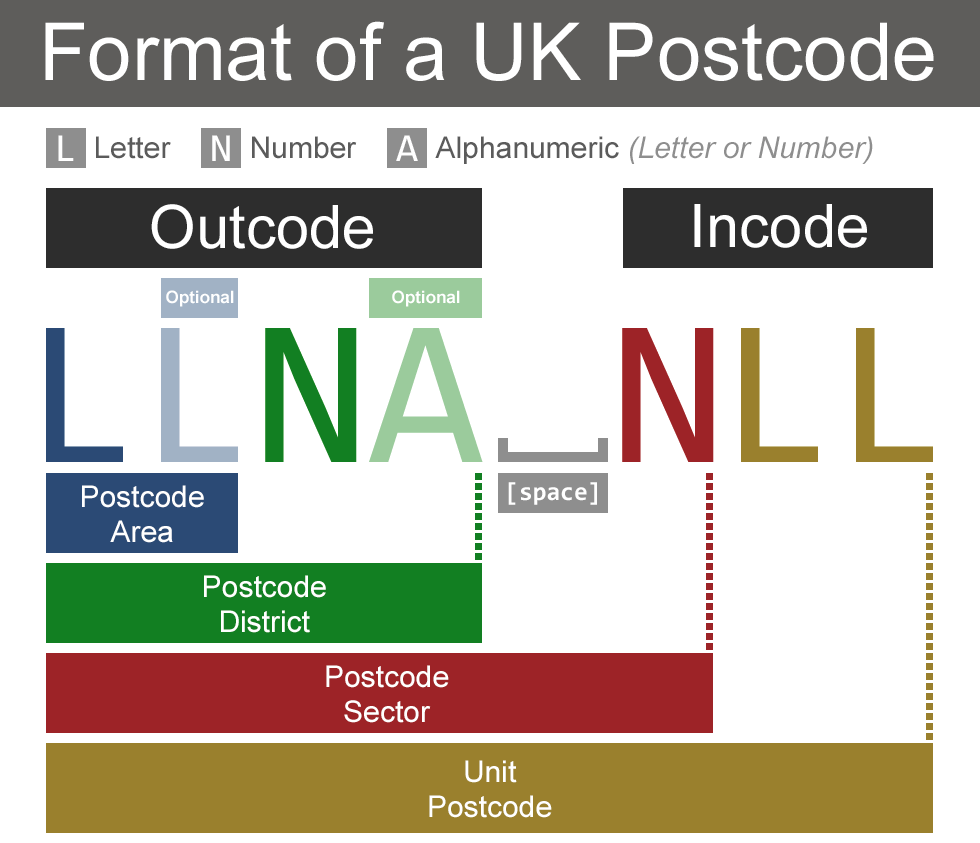
Image: Format of a UK postcode, courtesy of GetTheData.com
For a full list of postcode areas, see this reference: https://www.getthedata.com/postcode#postcode_drilldown.
The problem with automatic routing
When setting up routing automation based on UK postcodes, you cannot simply use the condition 'PostalCode contains B' to select postcode area B, because this condition would also match postcodes such as CB (Cambridge). Instead, you need an exact match on the postcode area. The solution is to use a formula field.
Setting up routing based on UK postcode areas
1. Create a formula field for the Postcode Area
Create a formula field on your object that extracts only the postcode area element from the postcode.
In the example below the postcode is stored in the PostalCode field. Use your own postcode field if it is a different field.
- In Salesforce Setup, go to Object Manager and open your object.
- Go to Fields & Relationships and click New.
- Select Formula as the data type and click Next.
- At Field Label, enter for example
UK Postcode Area. The Field Name is filled in automatically asUK_Postcode_Area. - Under 'Formula Return Type', select Text and click Next.
- Enter the following formula:
LEFT(PostalCode, 1)+IF(ISNUMBER(MID(PostalCode,2,1)), '', MID(PostalCode,2,1))
If postcodes are stored in a different field, use that field instead of 'PostalCode'. - Click Check Syntax to confirm that the formula has no errors, then click Next.
- Accept or edit the defaults in the remaining steps. You do not need to add the field to a page layout.
- Click Save.
2. Create a Match Rule for the Postcode Areas
Create a Match Rule that contains a pipe-delimited list of the postcode areas that make up a certain territory to assign records in.
- In Plauti Assign, go to Assign Setup > Match Groups.
- Open the Match Group that matches for the territory, or click New to create one.
- On the 'Match Rules' tab, click Configure.
- In the 'Configure Match Rules' window, edit the existing Match Rule or click Add to add a new one.
- In the Match Rule, at Field, enter the
UK Postcode Areaformula field you created. - Set Operator to
Equals. - At Value, enter the postcode areas for the territory, separated by pipes (
|). For example, create a Match Rule for the South East and enterME|RG|BN|MK|SL|HP|TN|GUas the Value. - Click Save.
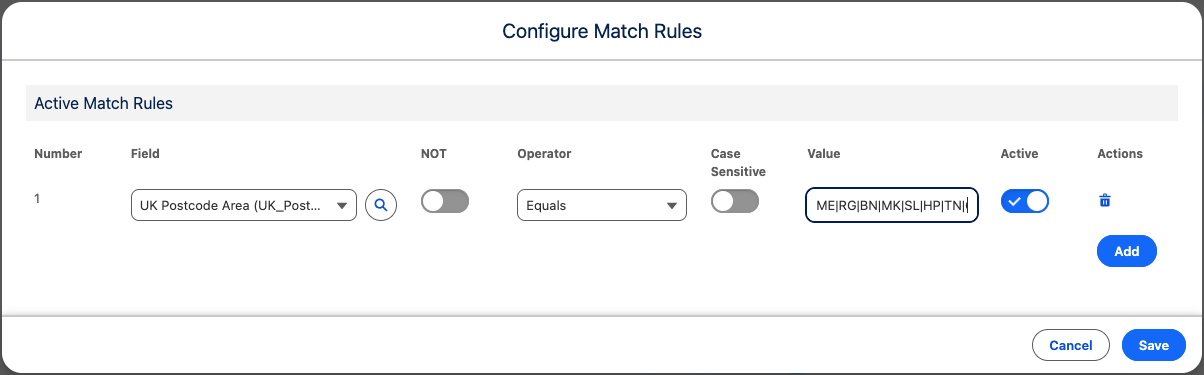
Create as many Match Groups as you have territories, each with its own Match Rule and set of postcode areas.