

No access to Deduplicate Apex Classes
Last updated
Question:
I get an error about not having access to a class: "You do not have access to the Apex class named 'xx'".
I was informed I should get access to a certain class in order to use a feature.
Answer:
If you are getting an error message that you are missing access to a Deduplicate class while the rest of Deduplicate works fine, this means that you are granted access to Deduplicate via individual Profile settings rather than the auto-updating permission set. Either a new class was added in the latest Deduplicate release, or you were not given access to all classes in the first place. Follow the steps in 'Add the class to a user profile' below to add access to the class.
Add the class to a user profile
Start with enabling the Enhanced Profile User Interface setting, to make sure you can view all available Deduplicate Apex classes.
- Go to Salesforce Setup.
- Go to Users > User Management Settings.
- Enable Enhanced Profile User Interface.

Then, add the class from the error message, plus any other missing classes, to your profile.
- Go to Salesforce Setup > Users > Profiles.
- Find the profile you want to edit and click on the profile's name.
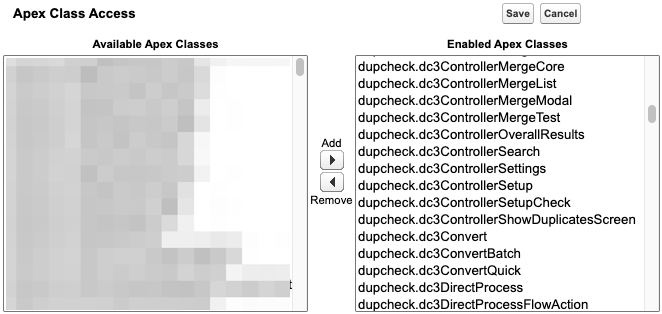
- At the profile overview, scroll down to Apex Class Access and click Edit.
- At Available Apex Classes, find the missing class and move it to Enabled Apex Classes.
- If you see any other classes that start with "dupcheck" listed under Available Apex Classes, move those to Enabled Apex Classes as well.
- Click Save.
Repeat for all other user profiles that need to work with Plauti Deduplicate.
The error about this class should not occur anymore. Have the user log out and in again if the problem persists. Read on to see how you can prevent this error from happening again.
Prevent the error from happening again
New classes in release notes
When a Deduplicate release contains new classes, this is mentioned in the Release Notes. Add the listed classes to all user profiles that need to work with Plauti Deduplicate.
User profile or Plauti Deduplicate permission set
For Deduplicate to work correctly, you need to grant your users access to all Deduplicate Apex classes. There are two possible ways to go about this. You can grant classes access to specific user profiles, or assign the Plauti Deduplicate permission set to individual users.
The advantage of using the Plauti Deduplicate permission set is that it is updated automatically. This means you don't need to make any changes after a Deduplicate update was released thats contain new classes. However, with the Plauti Deduplicate permission set, users have access to all functionalities of Deduplicate, including read access to the settings.
In versions of Plauti Deduplicate released after February 2026, non-system administrator users need a system permission 'customize application' to make changes to settings and configurations in Deduplicate Setup. This is described in the release notes for Deduplicate Release 2 of 2026.
If you don't want your users to access certain Deduplicate pages, such as Deduplicate Setup or Deduplicate Job, make sure to deny them access to those pages.
Assign the Plauti Deduplicate permission set
This option grants users access to all of Deduplicate.
- Go to Salesforce Setup > Users > Permission Sets.
- Click the Plauti Deduplicate permission set.
- At the top, click Manage Assignments.
- Click Add Assignments.
- Select the users you want to assign the permission set to.
- Click Assign.
You have now granted full access to Deduplicate, including all classes for current and future Deduplicate releases, to the selected users.
To deny access to certain Deduplicate pages:
- Go to Salesforce Setup > Users > Permission Sets.
- Find the profile you want to edit.
- On the profile, go to Object Settings.
- Find the Deduplicate tabs you want to hide and edit.
- Under Tab Settings, select Tab Hidden.
- Click Save.