

Flow Action - Find Duplicates By ID
Last updated
The Flow Action feature is available in the Premium Edition.
Due to Salesforce Governor Limits this Flow Action can only be used for processing single records. If multiple records are provided the flow will fail.
The "Find duplicate by ID" flow action lets you search for duplicate records based on a given record ID. If duplicates are found, search results are returned that can be used in other Deduplicate flow actions.
1. Apply a scenario to use in the Flow Action
Plauti Deduplicate uses scenarios to decide how to compare records in a flow action. When setting up the flow, you can choose to use specific scenarios, or all scenarios that are marked for use in flows.
To mark a scenario for use in flows:
- Go to Deduplicate Setup.
- Open the Object Configuration and configure the object you want to work with in a Lightning Flow.
- At the Scenario tab, decide which scenario you want to use, click Edit.
- At Apply To, apply the scenario to
Flow. - Save the changes.
The scenario will now be used when you do not select a specific scenario in the flow settings.
When picking specific scenarios in a flow's configuration, you can choose from all scenarios, whether they are set to 'Apply to: Flow' or not.
When applying multiple scenarios to Flow, Plauti Deduplicate will return potential duplicates records via the OR method. Learn more about scenarios.
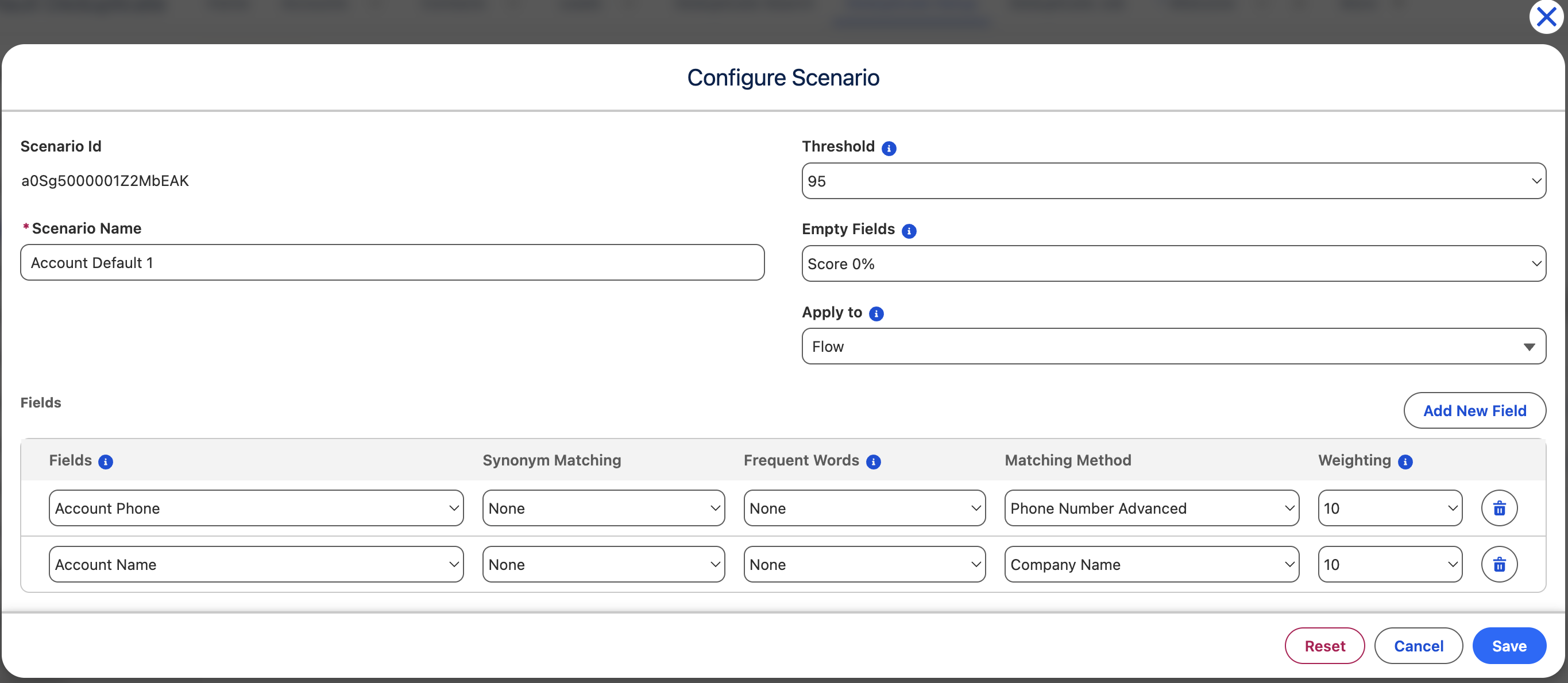
2. Use the Find Duplicate by ID flow action
- Open the Lightning Flow Builder.
- From the Elements section, drag a new Action to the screen from the Toolbox on the left side.

- In the New Action dialog, search for 'Find Duplicate by Record ID' and add the action.
- At Label, define a name for your action. If the API name is not set automatically, make sure an API name is defined as well.
- At Set Input Values, define a Record ID. The given record ID is the ID the duplicate search is executed for.
The input can be a specific Record ID, but can also come from a variable.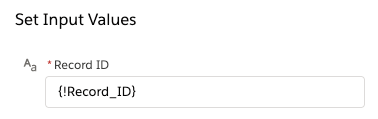
- At Scenario IDs, enter one or more scenario IDs. You can find a scenario's ID when you edit the scenario, at 'Scenario Id'.
Enter the scenario IDs as a 'collection' variable with data type: text. Add the scenario IDs via an Assignment element in the flow. - If you want to search for duplicates across objects, then at Search Cross Object enter Global Constant value 'True'.

To search for duplicates across multiple objects, the "Cross Object" feature should be enabled and configured.
If you want to search for duplicates in the same object only, make sure to leave "Search Cross Object" empty.
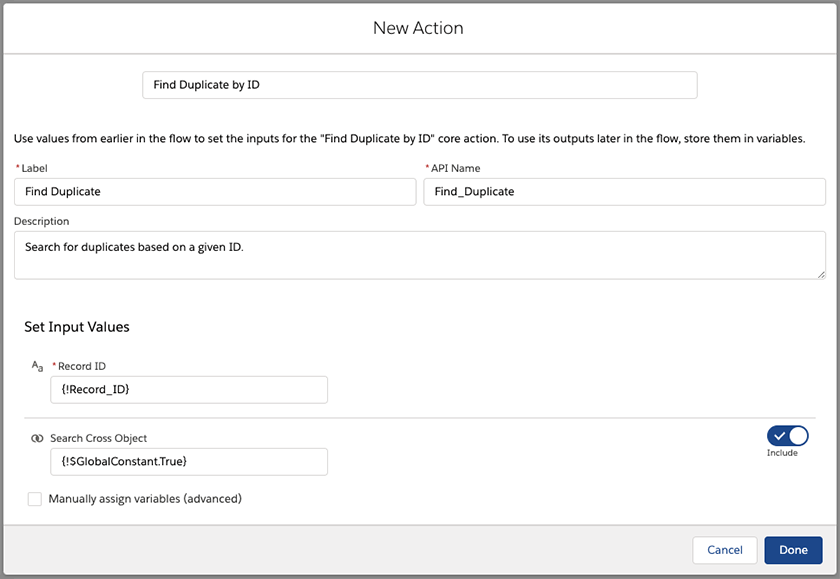
3. Connect your action to the Start trigger
Make sure the "Find Duplicates by ID" is connected to the start trigger.
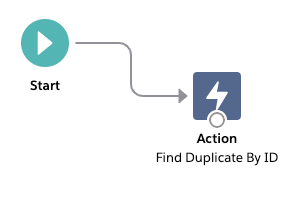
4. Run the flow
Run the flow by clicking Run.
Duplicate By ID action results
After executing the flow, the Find Duplicates by ID returns the following parameters that can be used in other flow actions.
| Parameter | Description |
| Duplicate | A boolean that returns "True" (duplicates are found) or "False" (no duplicates found). |
| Record ID | The record ID of the duplicate record with the highest matching score. |
| Matching Score | The matching score of the highest scoring duplicate. |
| Total Duplicates | The number of total duplicates found. |
| Duplicate Result | An Object containing all the Search Results of this action that you can use as a parameter for other Deduplicate flow actions such as Quick Merge, Quick Convert, or Store Results in Job. |
Gather the duplicate IDs in a list
To collect the record IDs of the found duplicates in a list, add the 'Get Duplicate IDs from Flow Output' flow action after this flow action.