
Update Plauti Server on Windows
This article is for updating Plauti Server on Windows.
For Linux, see Update Plauti Server on Linux.
To update Plauti Server on Windows:
Download the new version
Run the installer
Restart Plauti Server
Download the latest version
- Download the latest version of Plauti Server for Windows via https://go.plauti.com/PlautiServerWin64latest
Run the installer
Open the .exe file you just downloaded.
An initial loading window will appear.
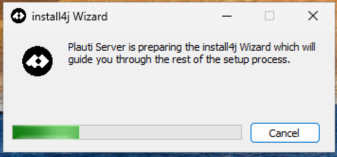
Wait for the process to complete. Windows may prompt you for administrator permission. Click Yes to allow the app to make changes to your device.
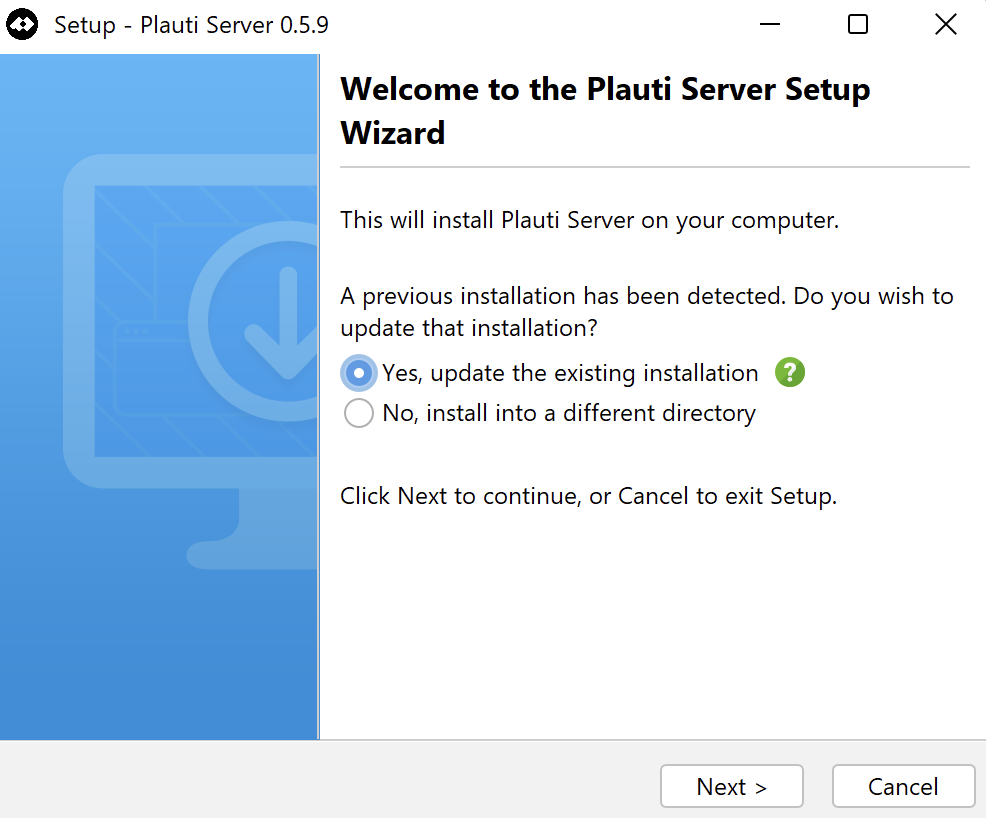
When completed, the setup wizard will open. Keep the default value “Yes, update the existing installation”.
Click Next to continue.
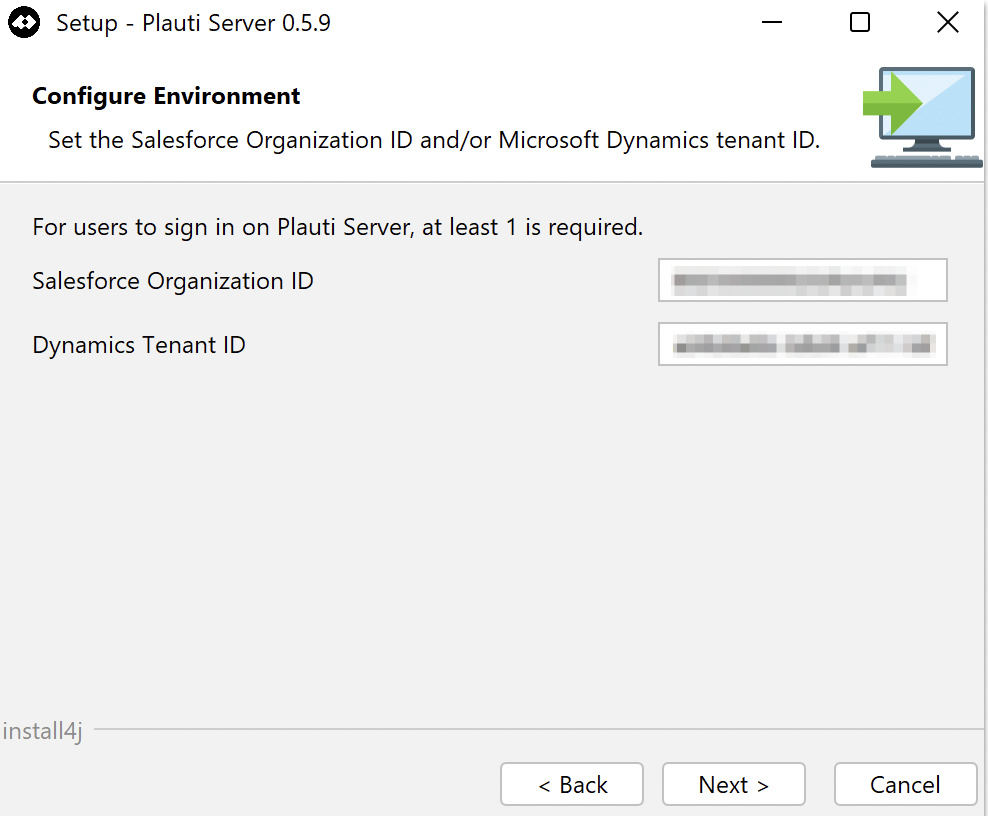
Keep the same Salesforce Organization ID and/or Dynamics Tenant ID that are already present.
Click Next.
The installation will now proceed. Once it is complete, the final screen will appear.
Click Finish to exit the setup wizard.
Restart Plauti Server
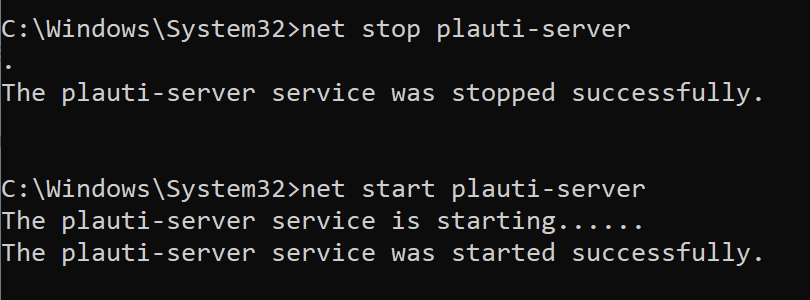
Stop the service using
sc stop plauti-serverornet stop pauti-server.Start the service using
sc start plauti-serverornet start plauti-server.