

Step 2. Configure your Salesforce Classic organization
Salesforce Classic not supported
Salesforce Classic features are not supported anymore for the Plauti apps and features. Please use Lightning features instead.
Read more in Salesforce Classic no longer supported.
This tutorial is for Salesforce Classic. If you are using Salesforce Lightning, please see this article.
After installing the Duplicate Check for Salesforce package, you need to add buttons and checkboxes to your Salesforce environment. This guide describes the configuration of the Lead, Contact and Account objects. To configure Duplicate Check for your custom Object, please see this guide.
Add custom fields and buttons to page layout
As part of configuring Duplicate Check for Salesforce we ask you to add the 'Disable Duplicate Check' field and the 'DC Check' button to your page layout. You will need them when working with Duplicate Check!
Lead Object
Navigate to (Salesforce's) Setup - Customize - Leads - Page layouts.
Click 'Edit' at the Lead Layout.
Drag and drop the 'Disable Duplicate Check' field in the Page Layout.
In the buttons area, drag and drop the 'DC Check' button in the Page Layout.
In the buttons area, drag and drop the 'DC Convert' button in the Page Layout.
Click 'Save'.
Account Object
Navigate to (Salesforce's) Setup - Customize - Accounts - Page layouts.
Click 'Edit' at the Account Layout.
Drag and drop the 'Disable Duplicate Check' field in the Page Layout.
In the buttons area, drag and drop the 'DC Check' button in the Page Layout.
Click 'Save'.
Contact Object
Navigate to (Salesforce's) Setup - Customize - Contacts - Page layouts.
Click 'Edit' at the Contact Layout.
Drag and drop the 'Disable Duplicate Check' field in the Page Layout.
In the buttons area, drag and drop the 'DC Check' button in the Page Layout.
Click 'Save'.
Add 'DC Merge' button to Search layouts
By adding the 'DC Merge' button to the search layouts, you can merge Contacts, Accounts or Leads directly from any custom view by selecting the record and clicking the 'DC Merge' button.
Lead Object
Navigate to (Salesforce's) Setup - Customize - Leads - Search Layouts.
Click 'Edit' at Lead List View.
Add the 'DC Merge' button to 'Selected Buttons'.
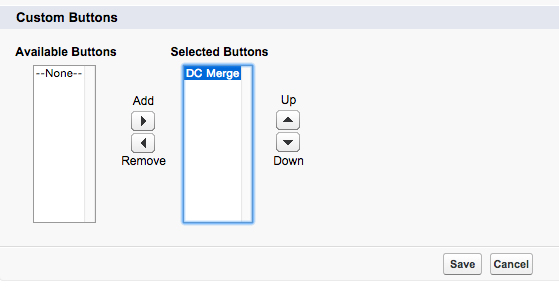
Click 'Save'.
Account Object
Navigate to (Salesforce's) Setup - Customize - Accounts - Search Layouts
Click 'Edit' at Account List View
Add the 'DC Merge' button to 'Selected Buttons'.
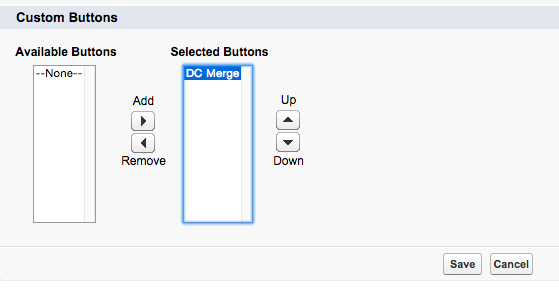
Click 'Save'.
Contact Object
Navigate to (Salesforce's) Setup - Customize - Contacts - Search Layouts
Click 'Edit' at Contact List View
Add the 'DC Merge' button to 'Selected Buttons'.
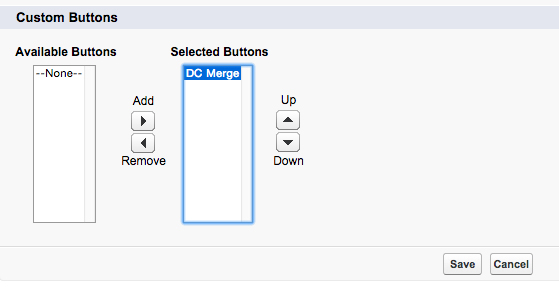
Click 'Save'.
Great, we're done! Duplicate Check for Salesforce is now ready to use. Get ready to find and merge duplicate records in your Salesforce organization. Make yourself familiar with Duplicate Check by reading our usage and configuration guides. Besides that, we wrote some helpful How-To's to help you. Need more or personal help?
Contact our Support team!
A good place to start? Check out this video on how to find duplicate records in your Salesforce ORG!