

Object Configuration
Object-specific settings can be configured in the Object Configuration.
Object-specific settings can be configured here. Edit existing Object configurations, and add new Objects to validate records for. Define which fields should be validated for each Object, and specify if certain fields should be validated before a record can be saved.
Accessing Object Configuration
To access Object Configuration:
- In Plauti Verify, go to Verify Setup.
- At left, click Object Configuration.
Adding an Object
To add an Object to validate records for:
- In Object Configuration, at right, click Add Object
 ** .**
 - In the pop-up that appears, select the Object you want to add and click Add
 ** .**
The Object is added to the list of Configured Objects. In the overview it will state that it has no validations configured yet.
Configuring Objects
To determine which fields should be validated for a certain Object, and to set other Object-specific settings, click Configure  at an Object's line.
**Settings
At tab <Object> Settings, e.g. 'Lead Settings', configure settings that will apply only to records of this Object. Click Configure  to edit the settings.
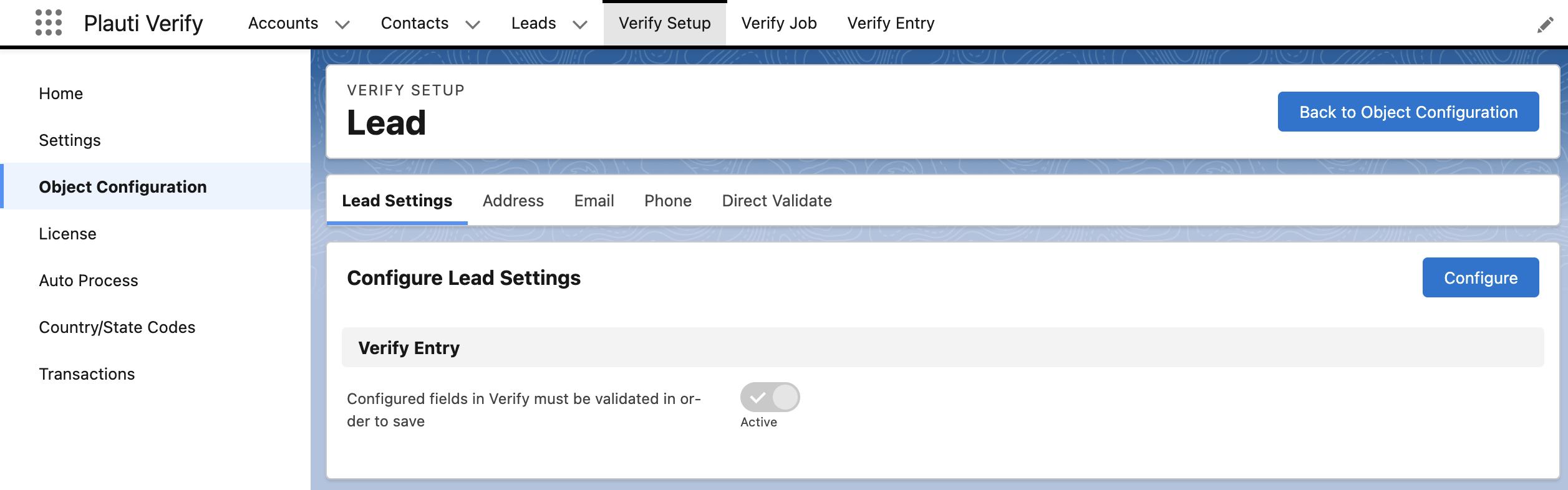
| Verify Entry |
| | --- | --- |
| Configured fields in Verify must be validated in order to save | When toggled to Active, users can only save a record via Verify Entry when the fields configured on the Address, Email and Phone tabs have been validated. |
| Field Configuration | For Objects other than Lead, Contact or Account |
|---|---|
| Status Field | Select the 'Verify Record Status' or 'RV Record Status' field that you created. If the picklist is empty, find out how to create the field in Applying Plauti Verify to your Objects. |
| Validation Field | Select the 'Verify Validation Result' or 'RV Validation Result' field that you created. If the picklist is empty, find out how to create the field in Applying Plauti Verify to your Objects. |
Address, Email and Phone
On the Address, Email, and Phone tabs, you can configure Address Validations, Email Validations, and Phone Number Validations respectively. Map the fields to validate, enable suggestions, define formatting, and more.
Click Add Validation  to add a new validation, or click Configure
  to edit an existing one.
| Address Validations | Map the address fields, geolocation fields and metadata fields, and configure suggestions. Learn more here. |
| Email Validations | Map the email field and metadata fields. Learn more here. |
| Phone Number Validations | Map the phone fields and metadata fields, and set your preferred standardization format. Learn more here. |
Direct Validate
At the Direct Validate tab you can set one or more Direct Validations. Select the field you want to have validated directly upon insert.
The scenarios you can select here are set up via the Auto Process menu at left. Address, Email and Phone fields each have their own scenarios.
Click Add Direct Validation  to add a new Direct Validation, or click Configure to edit an existing one.
**