

Validate Phone - Screen Flow Action
The Screen Flow Action "Validate Phone" lets you validate a phone number in a screen flow.
How to use Validate Phone in your flow
Step 1 Add the "Validate Phone" Flow Action to your flow
Open the Lightning Flow Builder.
From the Elements section, drag a new screen from the Toolbox onto the canvas.

At "Label" and "API Name", define a label and an API name for the screen.
From the Screen Components section, scroll down to Custom and drag the "RV - Validate Phone" screen component onto the screen.
Step 2 Fill out the fields
At "API Name", define an API name for the screen component. For example "ValidatePhone".
"Field API Name" is used for saving the validation results. Populate this field if you want to save the validation results.
At "Default Country", fill out the abbreviation of the country you want to use by default. For example, "NL" for "Netherlands" or "US" for "United States". Do the same for "Phone Format". Record Validation needs this information to validate the phone number in the right country and the right format.
Optionally, fill out the other fields with variables or fixed values, or leave them blank.
Click "Done".
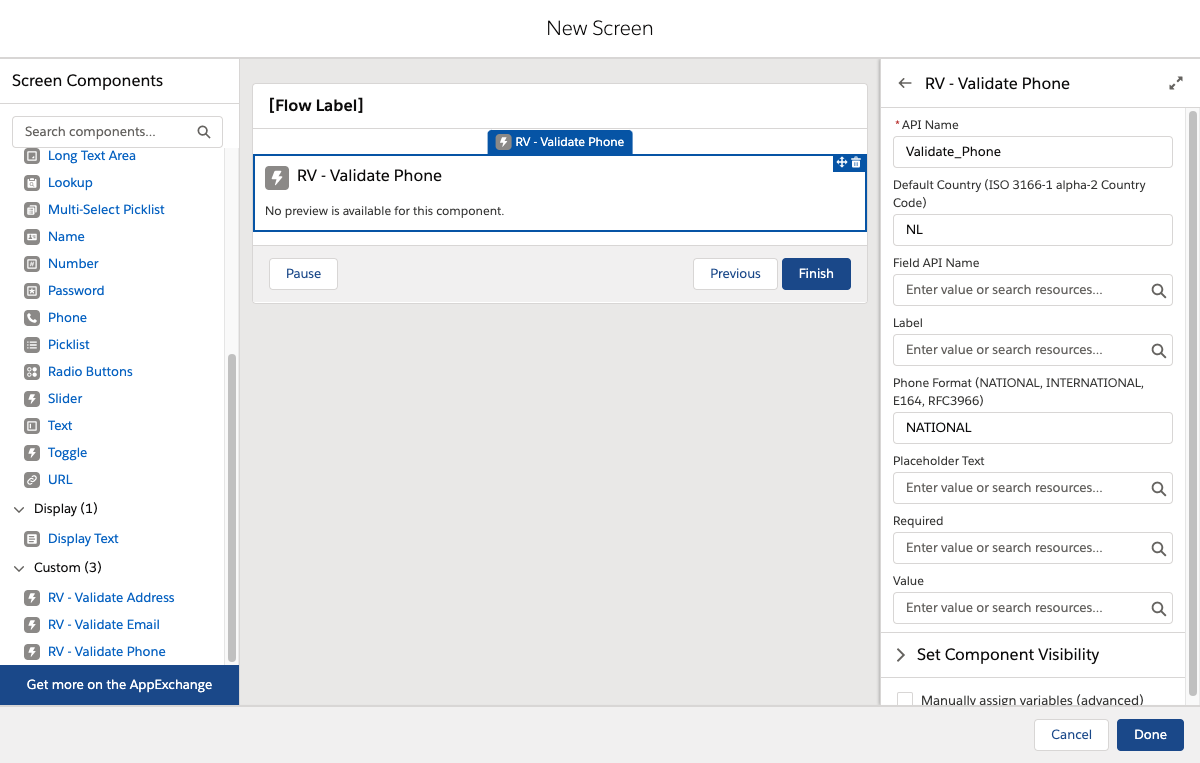
Example of the Validate Phone Flow Component
Step 3 Connect your screen to the Start trigger
Make sure the screen is connected to the Start trigger.
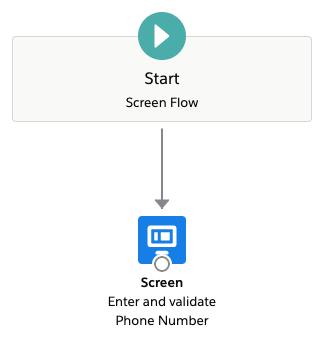
Step 4 Run the flow
Save the flow, give it a name and click Run.
Fill out the phone number and Record Validation will validate it for you.
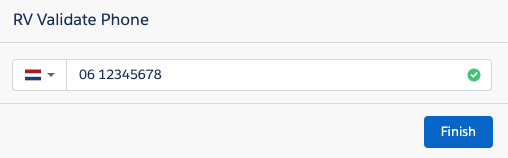
This Flow Action only validates the input; it does not save the result. Learn more about how to save the validation results.