

User access via profile settings
Although giving access with the Plauti Deduplicate permission set is recommended, you might want to give your users access to only certain parts of Plauti Deduplicate. Use the following profile settings to grant users access to different parts of Plauti Deduplicate.
Manually adjust after update
New Plauti Deduplicate releases might contain new classes, tabs etc. If you have granted access via profile settings, you need to manually add access to these new additions. Keep an eye on the Release Notes as these list new classes and other items you might need to add access to.
Update System Administrator
If, upon installation of Plauti Deduplicate, you chose to install for Administrators only, all access to Deduplicate Apex Classes, Deduplicate Objects etc. was added to the standard 'System Adminstrator' profile. This means that if a new Plauti Deduplicate release contains new classes, tabs etc, the System Administrator profile needs to be given access to those as well.
Access via profile or Deduplicate permission set?
All settings and items listed below are included in the Plauti Deduplicate permission set. The Deduplicate permission set is updated automatically upon new releases, so you don't need to add classes etc. manually. However, with the Deduplicate permission set, by default users have access to all of Plauti Deduplicate, including all settings. You can still deny access to certain pages such as Deduplicate Setup.
If you want to give a profile only limited access to Plauti Deduplicate, we recommend configuring that by limiting access to the different tabs and visualforce pages, but still giving full access to the objects listed in section '4. Deduplicate Custom Object access' below.
To grant users access to different parts of Plauti Deduplicate via their profile:
1 Enhanced Profile User Interface
Start with enabling the Enhanced Profile User Interface setting, to be able to view all Deduplicate Apex classes and other settings.
Go to Salesforce Setup.
Go to Users > User Management Settings.
Enable Enhanced Profile User Interface.

Next, grant the profile access to the Deduplicate Visualforce pages, Deduplicate Apex Classes, Deduplicate Custom Objects, and Deduplicate Tabs. Select which Visualforce pages and Tabs you want the profile to have access to, but make sure to grant it access to all Classes and Objects listed.
2 Deduplicate Visualforce page access
Go to Salesforce Setup > Users > Profiles.
Find the profile you want to edit and click on the profile's name.
At the profile overview, scroll down to Visualforce Page Access and click Edit.
At Available Visualforce Pages, move the Visualforce pages of your choice to Enabled Visualforce Pages.
Click Save.
| Visualforce page | Allows access to |
| Deduplicate Setup | |
| dupcheck.dc3Settings | Deduplicate Setup - Settings |
| dupcheck.dc3SetupCheck | Deduplicate Setup - Setup Check |
| dupcheck.dc3Frequent | Deduplicate Setup - Frequent Words |
| dupcheck.dc3Audit | Deduplicate Setup - Audit Logging |
| dupcheck.dc3License | Deduplicate Setup - License |
| --- | --- |
| Deduplicate Job | |
| dupcheck.dc3Batch | Deduplicate Job |
| dupcheck.dc3BatchDetail | Deduplicate Job - View Results |
| dupcheck.dc3BatchExport | Deduplicate Job - Export |
| --- | --- |
| Deduplicate Check & Deduplicate Convert | |
| dupcheck.dc3Check | Deduplicate Check page |
| dupcheck.dc3CheckAccount | Deduplicate Check for Accounts |
| dupcheck.dc3CheckContact | Deduplicate Check for Contacts |
| dupcheck.dc3CheckLead | Deduplicate Check for Leads |
| dupcheck.dc3Convert | Deduplicate Convert page |
| --- | --- |
| Deduplicate Entry | |
| dupcheck.dc3Entry | Deduplicate Entry |
| dupcheck.dc3EntryAccount | Deduplicate Entry for Accounts |
| dupcheck.dc3EntryContact | Deduplicate Entry for Contacts |
| dupcheck.dc3EntryLead | Deduplicate Entry for Leads |
| --- | --- |
| Deduplicate Live | |
| dupcheck.dc3Layout | Deduplicate Live |
| dupcheck.dc3LayoutAccount | Deduplicate Live for Accounts |
| dupcheck.dc3LayoutContact | Deduplicate Live for Contacts |
| dupcheck.dc3LayoutLead | Deduplicate Live for Leads |
| --- | --- |
| Deduplicate Merge | |
| dupcheck.dc3Merge | Merge page |
| dupcheck.dc3MergeListAccount | Merge page accessed via Deduplicate Merge button in list view (Accounts) |
| dupcheck.dc3MergeListContact | Merge page accessed via Deduplicate Merge button in list view (Contacts) |
| dupcheck.dc3MergeListLead | Merge page accessed via Deduplicate Merge button in list view (Leads) |
| dupcheck.dc3MergeModal | Merge Modal page |
| --- | --- |
| General | |
| dupcheck.dc3Search | Deduplicate Search page |
| dupcheck.dc3DiscardLayout | Deduplicate Discards |
| dupcheck.dc3HomeSearch | Deduplicate Search page for Salesforce home page |
| dupcheck.dc3KoalaHost | Deduplicate pages in general, such as Deduplicate Entry, Deduplicate Overall Job Results and more |
3 Deduplicate Apex Classes access
Go to Salesforce Setup > Users > Profiles.
Find the profile you want to edit and click on the profile's name.
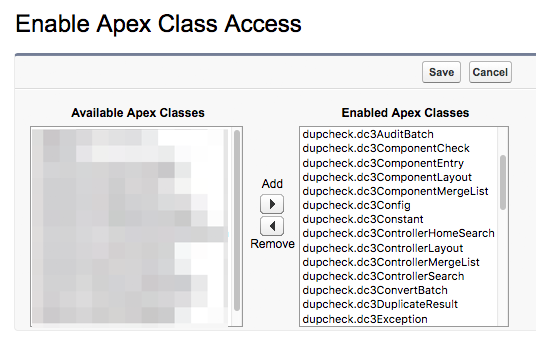
At the profile overview, scroll down to Apex Class Access and click Edit.
At Available Apex Classes, move every Apex Class that starts with
dupcheckto Enabled Apex Classes.Click Save.
4 Deduplicate Custom Objects access
If you want to give a profile only limited access to Plauti Deduplicate, we recommend configuring that by limiting access to the different tabs and visualforce pages, but still giving full access to all objects listed below.
Go to Salesforce Setup > Users > Profiles.
Find the profile you want to edit and click on the profile's name.
At the profile overview, scroll down to Object Settings.
Grant the profile Full Access to all Plauti Deduplicate objects.
| Plauti Deduplicate Analytics | Full Access |
| Plauti Deduplicate Audits | Full Access |
| Plauti Deduplicate Deltas | Full Access |
| Plauti Deduplicate Duplicates | Full Access |
| Plauti Deduplicate Frequent Words | Full Access |
| Plauti Deduplicate Groups | Full Access |
| Plauti Deduplicate Indexes | Full Access |
| Plauti Deduplicate Jobs | Full Access |
| Plauti Deduplicate Layouts | Full Access |
| Plauti Deduplicate Logs | Full Access |
| Plauti Deduplicate Queues | Full Access |
| Plauti Deduplicate Temp Files | Full Access |

5 Plauti Deduplicate Tabs access
Grant the relevant profiles access to Plauti Deduplicate tabs by setting the Tab Settings of the Plauti Deduplicate tabs to 'Default On'.
Go to Salesforce Setup > Users > Profiles.
Open the profile you want to modify.
Open Object Settings.
Open the different Deduplicate tabs, click Edit, change the Tab Settings to Default On, and click Save.
Do this for all or some of the following tabs, depending on what you want to give the profile access to:
Plauti Deduplicate Discards
Deduplicate Job
Deduplicate Job Detail
Deduplicate Job Overall Results
Deduplicate Search
Deduplicate Setup
6 Deduplicate Settings access for non-Admins
Users who are not a Salesforce Administrator can view the general settings and object settings in Deduplicate Setup, but not edit them. For non-Admin users to be able to edit the settings, they need the "Customize Application" SF system permission.
You're done! Still having trouble merging records due to rights and permissions in Salesforce? Check out this article: How to solve insufficient access rights when merging records