Prerequisites
- You have the Duplicate Check Admin role.
Access the DC Job Results Overview
 Click 'View Results' to see the job's results
To go to the Job Results Overview page of a job:
- In the Duplicate Check app, at left, , click Duplicate Check Job
 .
. - Click View Results
 at the job you want to view the results of.
The DC Job Results page will open.
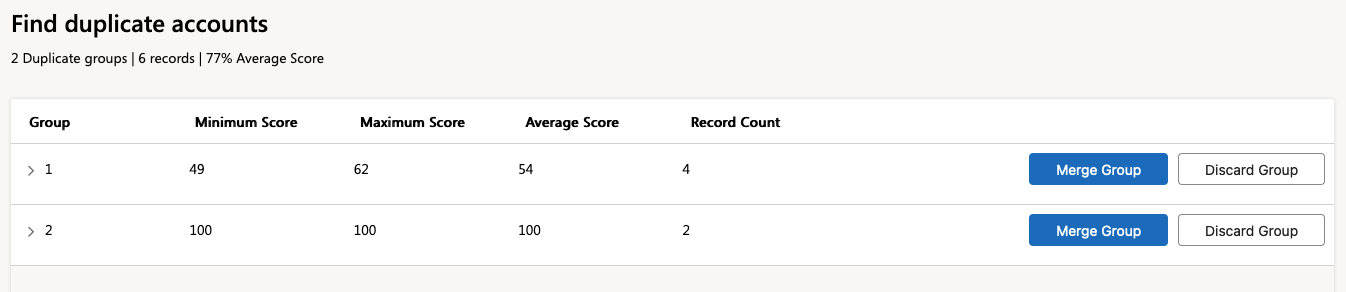 The DC Job Results page of a job titled "Find duplicate accounts"
General
At the top the name of the DC Job is shown, as well as its current result details: number of groups, total number of records, and total average score.
Duplicate Group Info
The duplicates that were found in the DC Job are grouped in Duplicate Groups. Each group contains records that matched to each other as duplicates, according to the job's scenario.
Open a group with the arrow  icon in the Group column to review the duplicates in a group. Select records there if you only want to process a number of the records in the group instead of all records. Read more below under 'Group View'.
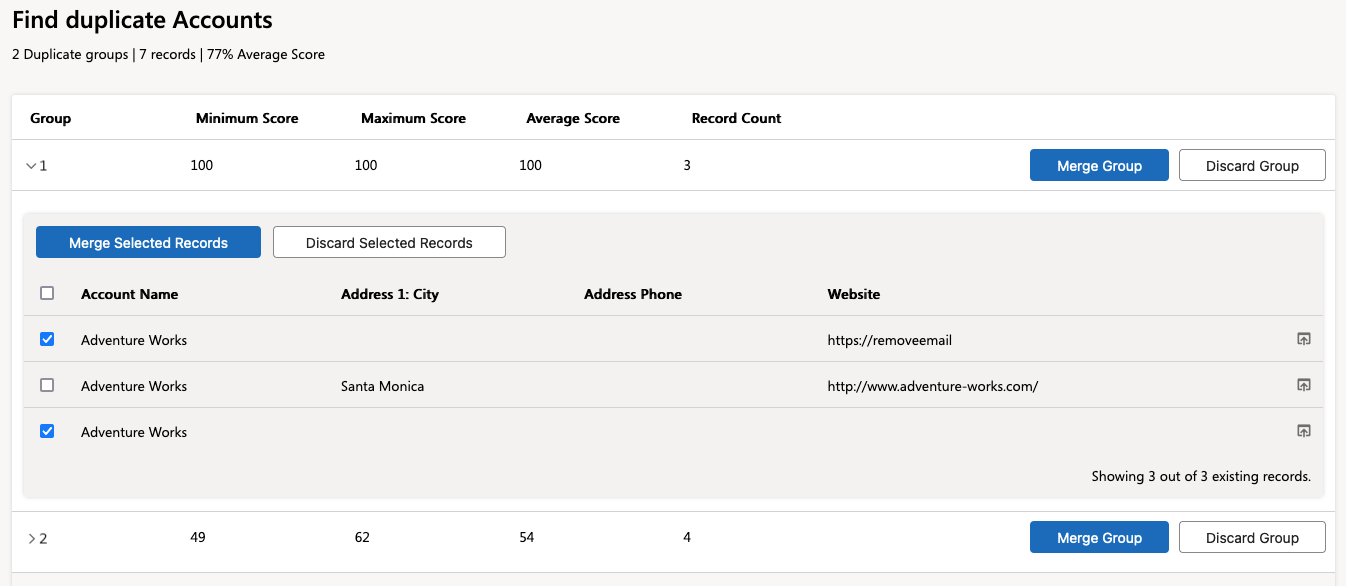 The results of job 'Find duplicate Accounts', with one group folded open and two of the three records selected for merging or discarding
| Group | The different groups of duplicate records in the job are each numbered with a Group Number. |
| Minimum Score | The lowest duplicate score in the group. |
| Maximum Score | The highest duplicate score in the group. |
| Average Score | The average duplicate score in the group. |
| Record Count | The total number of records in the group. |
Actions
At the right of each group or pair of duplicate records you'll find a number of actions that will be applied to all records in the group.
 |
The Merge Group button will take you to the Manual Merge page to merge all records in the group. |
 |
Use the Discard Group options to discard all records in this group from the job results.
|
Group View
By default the DC Job Results page opens with the Group View, with all groups closed. Each group shows all records that are duplicates of each other. In group view, you can process all records in a group in one go, or select which ones to merge or discard.
With Cross-Entity job results, you can only convert the Lead record into one match record, even when more duplicates were found. After converting, the entire group will be removed from the job results.
Open a group with the arrow icon in the Group column to review the duplicates in a group. Select records there if you only want to process a number of the records in the group instead of all records.
 |
Merge only the records you selected in the group view. The Manual Merge view opens where you can merge the selected records into one record. |
 |
Click 'Convert' at the record that you want to convert the Lead into. The Manual Convert view opens where you can convert the Lead record into the selected Contact or Account record. |
 |
Discard the selected records from the duplicate group. In a future duplicate job they will be taken into account again. |
 |
Discard the selected records as False Positives. They will be considered incorrect matches, and will not be displayed again as duplicates in future searches. |
 |
Unchecks the selected records. |
 Two records are selected to be merged or discarded
 A group in the results of a cross-entity job. Click 'Convert' to convert the Lead into the Contact.

