

Discard Records
If you come across a group of records with false positive results, you can discard one or more records from the group.
Discard records only for the current duplicate search, or for all future searches.
Sometimes you come across records that are very similar, but that you would not consider to be duplicate records of each other. You could adjust your scenarios so that these records are not detected as duplicates anymore, but that is not always possible without missing other records that are true duplicates. As an alternative you can decide to discard records from the search results.
Discard records one time only, for example if one of the records is incomplete and you want to have a closer look at them at a later point, but for now you want to remove them from the search results. This way you remove them from view for now, but next time you perform a duplicate search they will be found and shown again.
Or, discard record pairs more permanently. This way they will not be shown again as duplicates of each other in future searches. These discarded record pairs will be recorded on the Discarded Items page (see below) where they can be retrieved if needed.
Deduplicate Job
On the Deduplicate Job Results Overview page there are several ways to discard records.
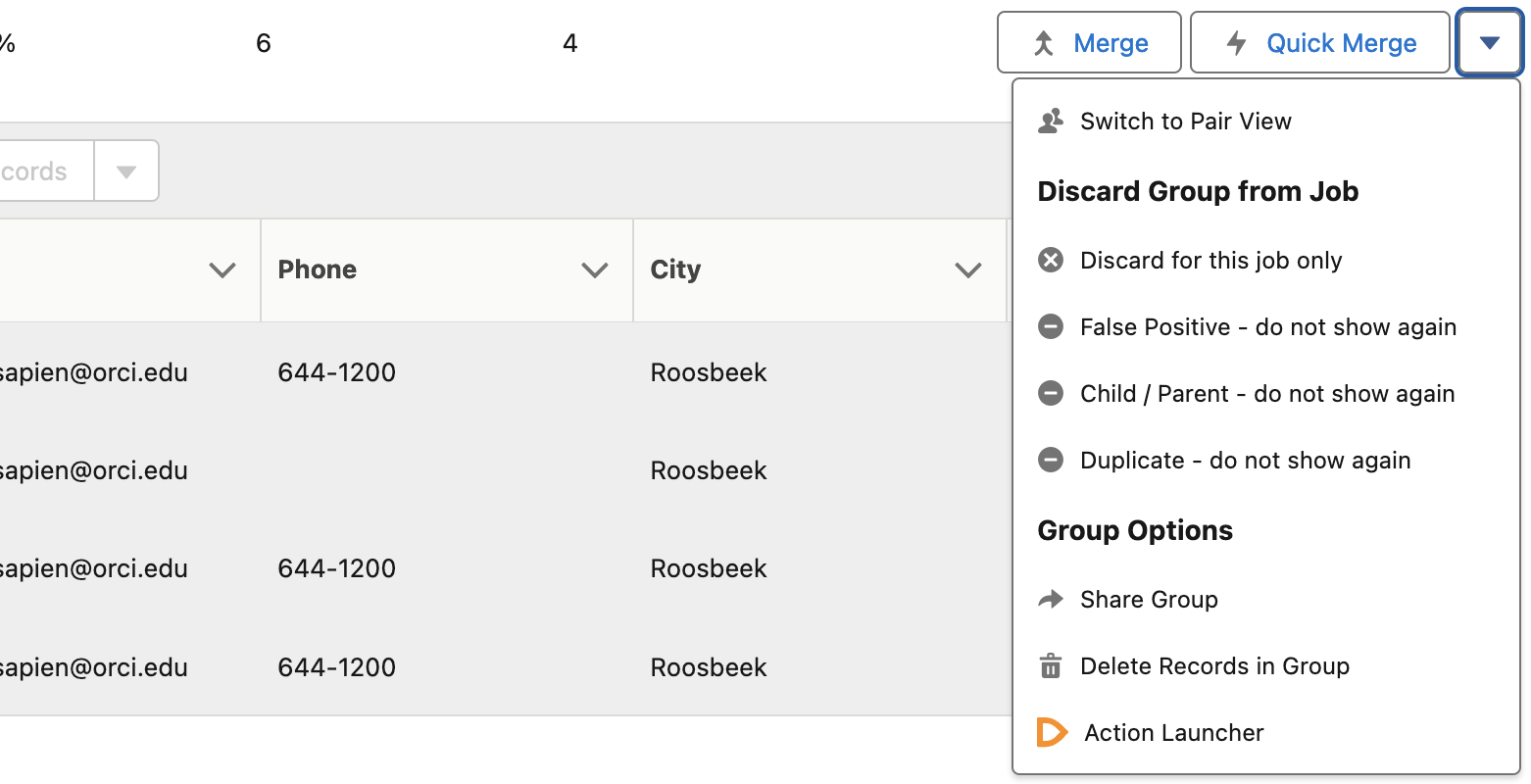
- At the right of a duplicate result group, open the Actions menu  to find discard options that will be applied to all records in the group (even if none are selected). to find discard options that will be applied to all records in the group (even if none are selected).You can discard the records for this job only, or mark them as False Positive, Child/Parent, or Duplicate, and do not show them again. |
 |
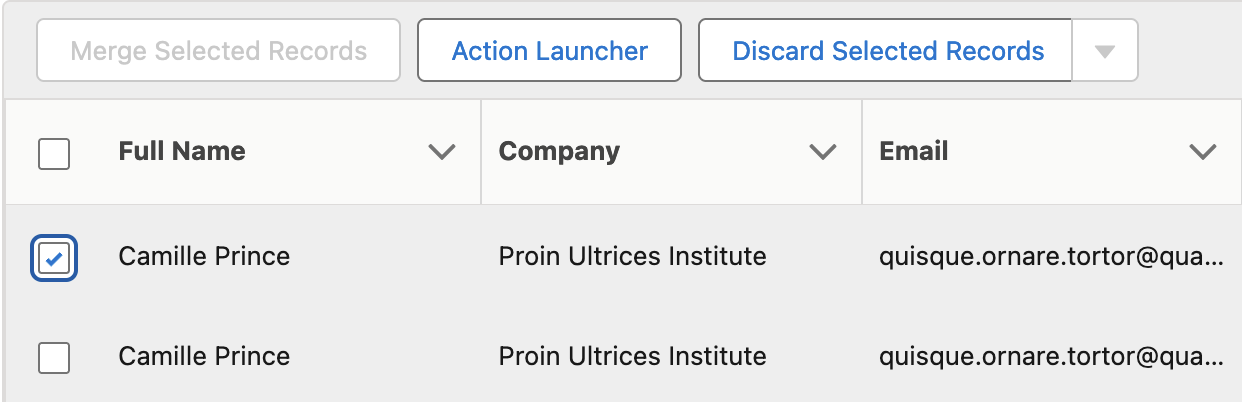
| - Open a duplicate group and select one record. You can discard the record for this job only by clicking Discard Selected Records at the left side of the group. |
 |
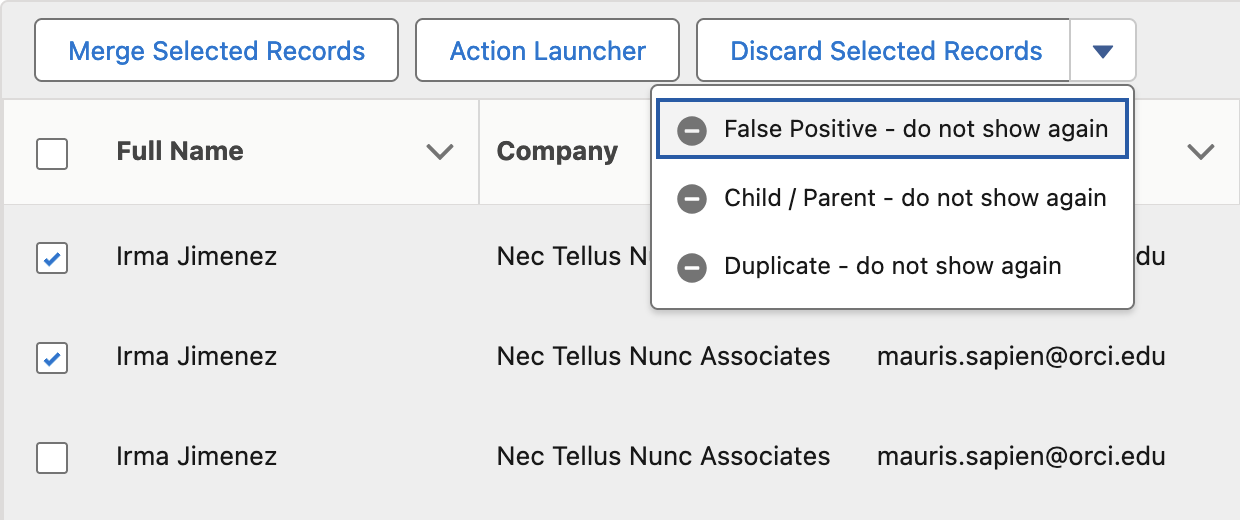
| - Open a duplicate group and select two or more records. You can discard the records for this job only by clicking Discard Selected Records. Or mark the selected records as False Positive, Child/Parent, or Duplicate of each other, and do not show them again, by selecting one of these options from the Actions menu for selected records at the left side of the group. |
 |
Deduplicate Live
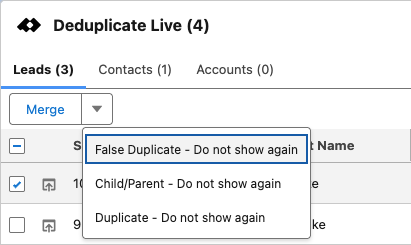
In the Deduplicate Live component, select one or more duplicate records using the checkboxes on the left. Click the Action Menu  button that now appears.
In the menu you can mark the record you are currently working on, in combination with the selected record(s), as False Positive, Child/Parent, or Duplicate of each other, and as "do not show again".
Discard Options
Discard Selected Records and Discard for this job only
By clicking a 'Discard' option, the records will be removed from this specific Job Results list. When running a new job or using Deduplicate Live, the records will be shown as duplicates again.
False Positive and False Duplicate
By clicking 'False Positive - Do not show again', the records will be removed from Deduplicate Live and the Deduplicate Job Results list, and will be regarded as a 'False Positive' (meaning the records are similar but not duplicates of each other). In the future, the records will not be matched as duplicates of each other anymore.
Child/Parent
By clicking 'Child/Parent - Do not show again', the duplicate group or pair will be removed from Deduplicate Live and the Deduplicate Job Results list, and regarded as 'Child/Parent' (meaning the records are so-called “child” and “parent” records of each other, hence their similarity). In the future, the records will not be matched as duplicates of each other anymore.
Duplicate
By clicking 'Duplicate - Do not show again', the duplicate group or pair will be removed from Deduplicate Live and the Deduplicate Job Results list, and will be regarded as 'Duplicate' (meaning the records are in fact duplicates of each other, but you want to keep both records present next to each other). In the future, the records will not be matched as duplicates of each other anymore.
Discarded records
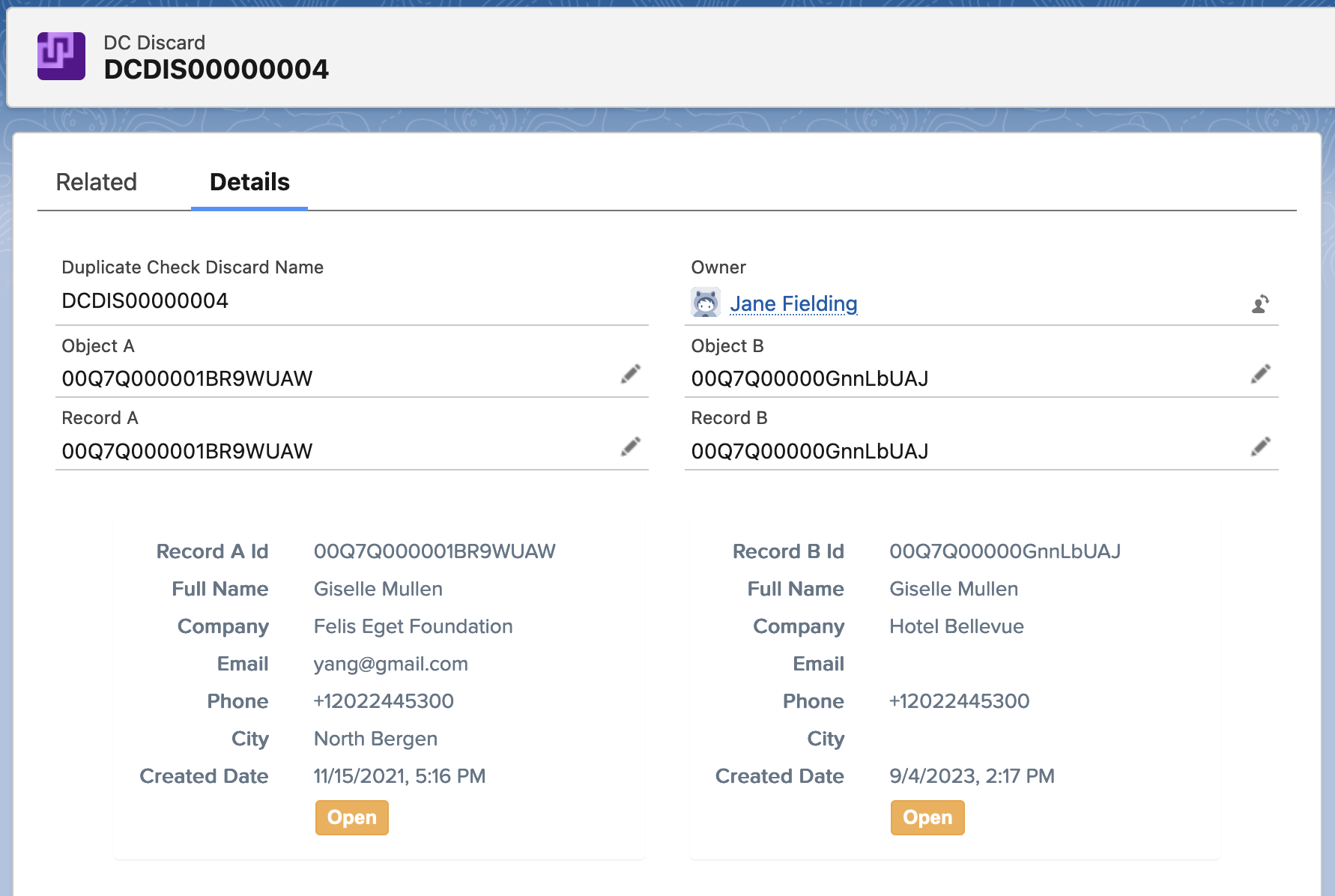
All discarded record pairs that were permanently discarded, via one of the options that mention “do not show again”, can be found, edited, or retrieved on tab Deduplicate Discards, accessible via Deduplicate Setup > Discarded Items.
In list view All, add the Created Date and Relation fields (or others) to quickly see more information about the discarded records.

Click on a Discard item to see which records the discard concerns.
Undo discarded records
You can undo a discard action, and let the discarded record pair show up in duplicate searches again as duplicates of each other.
Go to Deduplicate Setup > Discarded Items (at left).
The Deduplicate Discards tab opens.
In the search box, search for the Record ID of one of the discarded records, or in the Discard items list view, click on the Discard that was created at the time you discarded the records.
Delete the Discard Item in question via the Action menu at the right of the Discard Item, or with the Delete button at the top when you have the Discard Item open.
Plauti Deduplicate will now find the records involved as duplicates again.