

How to check for a similar Email address in multiple fields upon entering a new record
After completing this tutorial you will be able to check if there are any similar values between multiple fields upon entering a new record.
For example: If record 1 has "[email protected]" as primary email and a user creates a new record 2 with the same "[email protected]" as alternative email, Plauti Deduplicate duplicate prevention will trigger.
In order to cross-check two or more different fields and their values, you need to create a combined field that contains all these values.
1 Create a Combined Emails formula field
In this step, we are creating the combined email fields and use it later in the duplicate prevention scenario. For this example, we are using the fields Email1 and Email2:
Navigate to Salesforce Setup menu

In the search box type "Object Manager", click on it.
Select the Object to which you want to add the Combined Emails field.
Now, on the left menu, navigate to the "Fields & Relationships" page.
Click the 'New' button.
From the options available on the page, choose 'Formula' and click 'Next'.
Fill the blank fields:
'Field Label' with 'Combined Emails'
'Field Name' with 'Combined Emails'
Under 'Formula Return Type' select "Text" and click 'Next'As a formula, insert the fields (API names), separated by a white space. In our example, those are the “Email1” and “Email2" fields.
Example of Combined Emails Formula
Email1 + " " + Email2Under 'Blank fields handling' select "Treat blank fields as blanks". Click Next.
Apply the field-level security by your choice and click 'Next'.
Click 'Save'
2 Create a scenario with the Combined Field.
In Plauti Deduplicate, navigate to Deduplicate Setup page.
In Object Configuration, configure the Object you want to do a cross-check comparison in duplicate prevention.
On tab Scenarios, edit or create the scenario to use.
Add the newly created field by clicking 'Add new Field'. From the drop-down menu that will show, select "Combined Emails".
For 'Matching Method' choose "Email Address".
Set the 'Threshold level' to 100%. If you want fuzzy results set the threshold level at 95%.
Apply the scenario to 'Manual Insert Prevention' and 'Manual Update Prevention'
 Example Scenario
By adding the formula field to the scenario and choosing the 'Email Address' as the matching method, we are enabling Plauti Deduplicate to do a cross comparison between the email addresses included in the formula field.
3 (Re-)Create the search index
The Search Index is necessary when the new field you are going to cross-check is custom and has never been indexed before by the Plauti Deduplicate Search Index, but even if you already have created a Search Index, please re-create it now.
Go to Deduplicate Setup.
On the left hand side, click Object Configuration, and configure the Object you want to create a Search Index for.
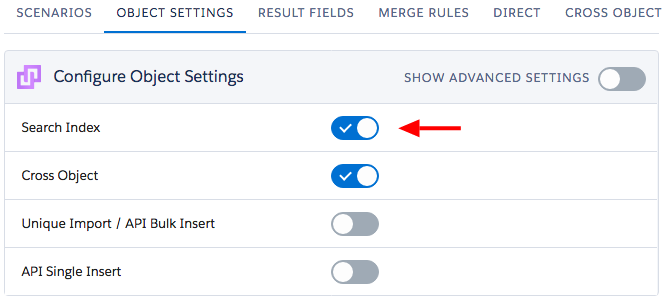
On the Object Settings tab, in the General section, make sure the Search Index option is enabled, and in the Index section that the search index is configured. Read more here.
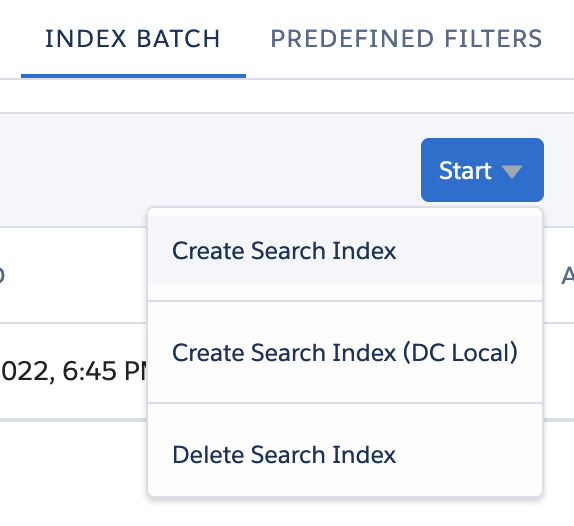
Go to the Index Batch tab.
Click the Action button and select Create Search Index.
Click here to watch a short video of how to enable and create the Search Index.
Now when you completed this article, you will be able to cross-check if there are any similar values between multiple fields upon entering a new record.