How to Find Duplicates Across Entities in Dynamics 365

How to Find Duplicates Across Entities in Dynamics 365
March 24, 2026
Reading time: 10 minutes

If you manage data in Dynamics 365, you know the pain. A lead comes in from your website, and you can't shake the feeling you've seen that email before. You check. It's already in your system as a contact. Now you have two records for the same person.

This problem is common, but it doesn't have to be a daily battle. Dynamics 365 offers native tools for detecting duplicates across different entities. The challenge is understanding how to configure them and knowing where they fall short.

This guide walks you through how to find duplicates across entities like Contact vs. Lead or Account vs. Contact. You'll learn the exact steps, where the native tools hit their limits, and how Plauti Deduplicate for Dynamics 365 can pick up from there.

Why Cross-Entity Duplicate Detection Matters

Duplicate records aren't just annoying. They create real business problems.

When your sales team reaches out to the same person twice from two different records, you look unprofessional. When marketing sends duplicate emails, your unsubscribe rate climbs. When your reports show inflated numbers, your decisions are based on bad data.

And when AI tools in Dynamics 365, like lead scoring, opportunity insights, or predictive analytics, consume that data, duplicates quietly corrupt the output. A lead split across two records gives the model an incomplete picture of that person’s history and engagement. The score comes back wrong. The insight is off. Your team acts on guidance that was broken before it was ever generated. Garbage in, garbage out, but now with a confidence score attached.

Cross-entity duplicates are especially tricky in Dynamics 365. Unlike duplicates within the same entity (for example, two Account records for the same company under slightly different names, or two Contacts with the same email), cross-entity duplicates live in different tables, for instance, a Lead that actually represents an existing Contact or Account. These often slip through standard detection because duplicate checks are usually configured per entity. Each entity is treated as its own island, so a Lead can pass validation even when a matching Contact or Account already exists.

The first step to solving this problem is understanding how Dynamics 365’s duplicate detection rules work today – and where they fall short for cross-entity matching – so you can design matching rules and processes that catch both same-entity and cross-entity duplicates.


Understanding Base Record Type vs. Matching Record Type

Dynamics 365 duplicate detection rules rely on two key concepts: Base Record Type and Matching Record Type.

The Base Record Type is the entity you're checking. The Matching Record Type is the entity you're comparing it against.

For example, if you want to prevent new leads from matching existing contacts, you would set:

  • Base Record Type: Lead
  • Matching Record Type: Contact

This setup tells the system, "When someone creates or updates a Lead, check if there's already a Contact with the same information."

You can also flip it. Set Base Record Type to Contact and Matching Record Type to Lead. That way, when a contact is created, the system checks for matching leads.

In most organizations, you want both rules. One to catch leads that match contacts, and one to catch contacts that match leads.

How to find Duplicates in Dynamics 365 1

Step-by-Step: Creating a Cross-Entity Duplicate Detection Rule

Here's how to set up a duplicate detection rule that compares two different entities.

1. Navigate to Duplicate Detection Rules

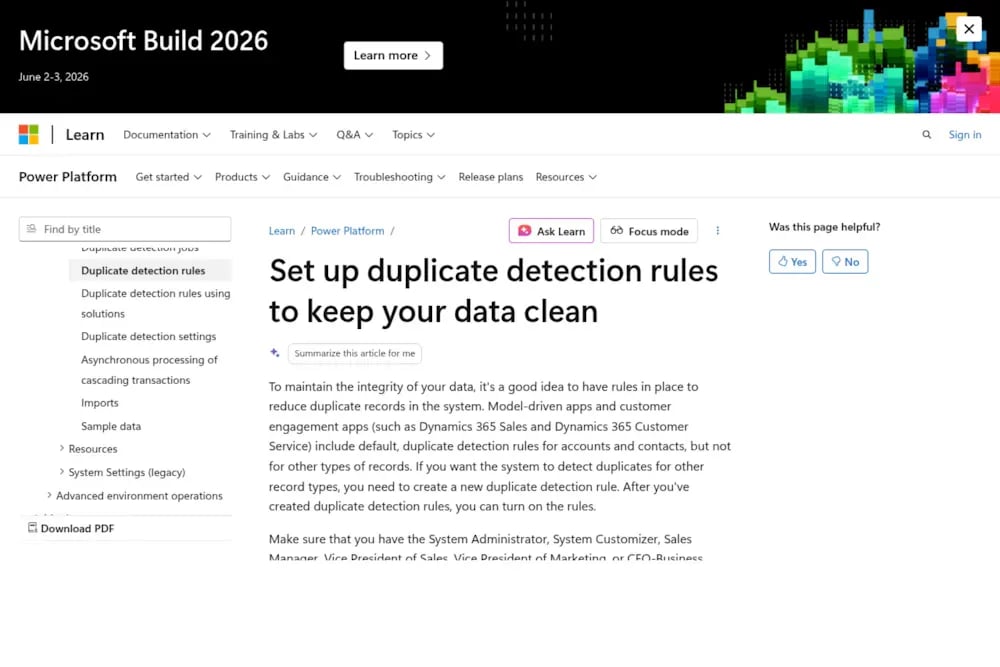
Go to your Dynamics 365 Sales (or other model‑driven) app. Open Advanced Settings, then navigate to Settings > Data Management > Duplicate Detection Rules.

In some environments, this may appear under the classic settings area as Settings > Data Management > Duplicate Detection Rules.

2. Create a New Rule

Click New. Give your rule a clear name, like "Lead to Contact - Email Match."

3. Select Base and Matching Record Types

On the rule form, set the entities you want to compare:

  • Base Record Type – the entity you want to check (for example, Lead).
  • Matching Record Type – the entity you want to compare against (for example, Contact).

Then, in the Rule Criteria area, you’ll define which fields from these entities should be compared.

4. Define Your Matching Criteria

This is where you tell the system what fields to compare. For a Lead‑to‑Contact email match, you might configure:

  • Base Record Field: Lead’s primary email field (e.g., Email).
  • Matching Record Field: Contact’s primary email field (e.g., Email or Email Address 1).
  • Operator / Criteria: Exact Match.

You can add multiple criteria lines. Within a single rule, these conditions use AND-logic; all of them must be true for a record to be considered a duplicate. If you need OR‑type behaviour, you typically use multiple rules to cover each pattern.

5. Configure Additional Settings

In the rule options, you’ll typically see settings such as:

  • Exclude inactive matching records: enable this if you only want to check against active records in the matching entity.
  • Case sensitive: enable this if “john@example.com” and “John@example.com” should be treated as different values.
  • Ignore blank values: enable this so empty fields don’t cause records to be flagged as potential duplicates.

6. Save and Publish

Click Save and Close, then select your new rule and click Publish.

Publishing is critical. Until a duplicate detection rule is published, it won’t run. When you publish, Dynamics 365 generates internal matchcodes/indexes based on your rule so it can efficiently compare existing records. This background process can take noticeable time in larger environments.

Handling Custom Tables

Custom tables work the same way as standard entities, with one extra step.

First, make sure your custom table has duplicate detection enabled. Open Power Apps, navigate to your custom table, and click Edit table properties. Under Advanced options, check Duplicate detection.

Once enabled, you can create rules just like you would for Contacts or Leads. Custom tables are fully supported for within-entity and standard rule-based matching.

When Duplicate Detection Actually Runs

Dynamics 365 doesn't check for duplicates in every scenario. Here's when it does and doesn't run.

Detection runs during:

  • Manual record creation or update in the UI
  • Outlook offline-to-online sync
  • Data imports (if duplicate detection is enabled in import settings)

Detection does NOT run during:

  • Lead conversions (lead to account/contact)
  • Record merges
  • Status changes (e.g., activating or deactivating a record)
  • API calls (unless SuppressDuplicateDetection is explicitly set to false)

That last one is important. If you're using Power Automate, integrations, or custom code to create records, duplicate detection is suppressed by default. You need to explicitly enable it in your API call. And even then, the native system won’t alert users, it will only block or log based on your rule configuration.

How to find Duplicates in Dynamics 365 2

Scheduling Bulk Duplicate Detection Jobs

Real-time detection only works for new or updated records. What about duplicates already sitting in your system?

That's where scheduled duplicate detection jobs come in.

Go to Settings > Data Management > Duplicate Detection Jobs and click New. The wizard walks you through:

  • Selecting the entities to scan
  • Choosing which published rules to apply
  • Setting a recurrence (daily, weekly, or monthly)
  • Configuring email notifications when the job completes

Scheduled jobs are especially useful after data imports or migrations, when duplicates can sneak in through channels that bypass real-time detection.

The Native Limitations You Need to Know

Dynamics 365's native duplicate detection works well for basic scenarios

But it has real constraints. Maximum of five published rules per entity: If you hit this limit, you'll need to unpublish or delete an existing rule before you can add another. No fuzzy matching across entities: You can enable phonetic matching within a single entity, but cross-entity rules don't support flexible fuzzy logic. Matching is mostly exact or based on first/last N characters. Matchcode length limits: Each rule creates a matchcode based on the fields you select. Add too many criteria, and you'll exceed the matchcode length. Detection can fail silently. No native cross-object merge: Dynamics 365 can detect a lead that matches a contact, but it won't merge them. You'll need to handle that manually or with custom automation. Performance at scale: Large datasets can slow down detection jobs and create a backlog, especially if multiple rules are running simultaneously. For organizations with complex needs, Plauti Deduplicate for Dynamics 365 handles scenarios that go well beyond these boundaries, including advanced matching methods, guided merge workflows, Lead-to-Contact conversion, and API insert detection.

Practical Example: Lead vs. Contact Detection

Your marketing team runs a campaign and imports 1,000 leads. Some of those leads are already contacts in your system.

To catch this, create a rule:

  • Base Record Type: Lead
  • Matching Record Type: Contact
  • Criteria: Email (exact match) AND Last Name (exact match)

Publish the rule. Now, when a lead is created with the email "jane.smith@example.com" and last name "Smith," the system checks whether a contact with that email and name already exists. If it does, the user sees a duplicate warning before saving.

You can also run a bulk detection job to scan all existing leads and find retroactive matches.

Viewing and Managing Detected Duplicates

After detection runs, you need to act on the results.

For real-time detection during record creation, users see a duplicate warning dialog. They can choose to save anyway or cancel and review the existing record.

For scheduled jobs, go to Settings > Data Management > Duplicate Detection Jobs and open the completed job. Click View Duplicates to see all matches found. From there, you can manually merge records or export the list for review.

Dynamics 365 does not auto-merge duplicates. Every merge requires a decision about which record to keep and which fields to preserve. This is by design, but it means duplicate management is still a manual process unless you build custom automation.

What to Do When Native Tools Aren't Enough

If you're dealing with high duplicate volumes, complex matching needs, or records coming in via API, the native Dynamics 365 tools will hit their ceiling.

Signs you've outgrown the native capabilities:

  • You're hitting the five-rule-per-entity limit
  • You need flexible matching for names, addresses, or company names
  • You want to convert duplicate Leads into existing Contacts or Accounts automatically
  • Your detection jobs are taking too long or timing out
  • Records imported via API are creating duplicates that the native system doesn’t catch
How to find Duplicates in Dynamics 365 3

How Plauti Deduplicate for Dynamics 365 Fills These Gaps

Plauti Deduplicate is built natively on the Dynamics 365 platform. No data leaves your environment. Here’s what it adds on top of the native capabilities.

Cross-Entity Search for Leads. When creating or updating a Lead, Plauti checks whether that person already exists as a Contact or Account. If a match is found, the user is notified before saving. You can also include cross-entity searches in DC Jobs, batch runs that scan your existing data, and surface overlaps between Leads, Contacts, and Accounts.

Advanced matching methods. Beyond exact field matching, Plauti supports company name matching algorithms that handle variations like "Acme Corp" vs. "Acme Corporation." Broader fuzzy matching capabilities are actively being developed and added in upcoming releases.

As-you-type duplicate notifications. Plauti can flag potential duplicates as a user types, not just on save. This means your team sees a warning before they've even finished filling in the form.

API insert detection. Records created via API are automatically screened against your configured scenarios. Potential duplicates are flagged and queued for review in a dedicated DC Job, without requiring extra configuration per API call. This closes one of the most common gaps in native Dynamics 365 detection.

Lead conversion, not just detection. When Plauti finds a Lead that matches an existing Contact or Account, it doesn't just flag it. You can convert that Lead directly into the matching record, in real-time via the Duplicates Found tab, or in batch via a DC Job.

Merge with rules you control. For within-entity duplicates, Plauti's guided merge screen lets you decide per field which value wins. You can configure rules based on the most recent update, a specific source system, or a fixed master record. Auto-merge is available for straightforward cases.

Jobs run outside Dynamics 365. Plauti batch jobs are processed via Plauti Cloud (a dedicated, fenced-off Azure environment) or DC Local (on your own machine or server). Neither option puts load on your Dynamics 365 environment during processing. Results are sent back once the job is complete.

Full audit log. Plauti keeps a record of every merge, conversion, deactivation, and deletion, including who took the action and when. For organizations with compliance requirements or governance processes, this traceability is hard to get any other way.

Works on custom entities. Detection, prevention, and batch jobs all work on any entity in your environment, including custom tables. You configure which entities are active and what rules apply to each.

Best Practices for Cross-Entity Duplicate Detection

A few lessons learned from teams managing duplicate detection at scale: Start with high confidence matches: Use exact email matching before you layer in name matching

Build confidence in your rules before adding complexity. Document your rules: Keep a record of which rules are active, what they match on, and why. This helps when troubleshooting or onboarding new admins. Test before publishing: Create a rule in a sandbox environment first. Run a detection job and review the results. Make sure you're not creating false positives. Schedule jobs during off-hours: Detection jobs can affect system performance. Run them overnight or on weekends when user activity is low. Monitor rule performance: Check your detection job history regularly. If jobs are failing or taking too long, simplify your criteria or split rules. Educate your users: Make sure your team understands what the duplicate warnings mean and how to respond. Ignoring warnings defeats the purpose of detection. Think about API inserts. If your environment receives records from integrations, marketing platforms, or data imports, plan your duplicate strategy for those channels too. Native detection won’t cover them by default.

Wrapping Up

Finding duplicates across entities in Dynamics 365 is possible with the native duplicate detection rules, but it requires careful configuration and a clear understanding of the system's limits.

By setting up cross-entity rules with the right Base and Matching Record Types, defining clear matching criteria, and scheduling regular detection jobs, you can catch a lot of duplicates before they cause problems.

And when your needs grow beyond what the native tools can handle, whether that’s API insert detection, Lead conversion, advanced matching, or processing jobs that don’t slow down your environment, Plauti Deduplicate for MS Dynamics is built for exactly that.

The key is to start small, test thoroughly, and build from there. Clean data doesn't happen by accident. It's the result of clear rules, consistent processes, and the right tools for the job.

Ready to see it in action? Download the free version at Microsoft Marketplace.

Frequently Asked Questions (FAQ)

Does Dynamics 365 support cross-entity duplicate detection natively?

Yes, but with limits

Native duplicate detection rules in Dynamics 365 let you compare records across different entities, for example, a Lead against a Contact. However, the system is limited to five published rules per entity, supports only exact or character-based matching, and will not merge or convert records automatically when a cross-entity match is found.

What is the difference between Base Record Type and Matching Record Type?

The Base Record Type is the entity being checked, the one a user is creating or updating. The Matching Record Type is the entity the system compares it against. So if you set Base to Lead and Matching to Contact, the system checks every new or updated Lead against your existing Contacts.

Does native Dynamics 365 detect duplicates coming in via API?

Not by default. When records are created through API calls, Power Automate flows, or integrations, duplicate detection is suppressed unless you explicitly pass SuppressDuplicateDetection as false in each call. Even then, the native system handles it inconsistently. Tools like Plauti Deduplicate handle API inserts automatically, screening records against your configured scenarios without extra setup per call.

Can Dynamics 365 automatically merge duplicate records?

No. The native duplicate detection tools identify potential matches and alert users, but every merge must be done manually. You decide which record to keep and which field values to preserve. If you need automated merging or bulk resolution, you'll need a third-party tool or custom automation.

What entities does Plauti Deduplicate support for cross-entity detection in Dynamics 365?

Currently, Plauti Deduplicate supports Lead as the source entity, with Contact and Account as the match entities for cross-entity detection. This works both in real-time prevention (as users create or update a Lead) and in DC Jobs for batch scanning. Support for additional entity combinations is on the roadmap.

Can Plauti Deduplicate merge a Lead and a Contact together?

Not as a direct merge across entity types. What Plauti does support is Lead conversion. When a Lead is found to match an existing Contact or Account, you can convert that Lead into the matching record. This follows standard Dynamics 365 conversion logic and can be done in real-time or in batch via a DC Job.

Will running Plauti Deduplicate batch jobs slow down my Dynamics 365 environment?

No. Plauti batch jobs are processed outside of Dynamics 365, either via Plauti Cloud (a dedicated, fenced-off Azure environment) or DC Local (running on your own machine or server). Your environment stays responsive while jobs run, and results are sent back once processing is complete.

Does Plauti Deduplicate work on custom entities in Dynamics 365?

Yes. Detection, prevention, and batch jobs all work on any entity in your environment, including custom tables. You configure which entities are active and what scenarios apply to each one.

Is there a free trial available for Plauti Deduplicate for Dynamics 365?

Yes. Plauti Deduplicate is available on Microsoft Marketplace. No credit card is required to get started.

How does Plauti Deduplicate keep track of what was merged or deleted?

Plauti keeps a full audit log that records every merge, conversion, deactivation, and deletion, including who performed the action and when. This makes it easier to investigate issues, answer user questions, and meet compliance or audit requirements.

Hungry for more?
View resources